
The fastest way to protect your worship song library is to apply the 3-2-1 rule: keep your live synced system as one copy, a local archive as a second, and a versioned offsite cloud backup as a third. Then actually test the restores. Pair that with clean metadata and a documented recovery process, and losing a file the week before Easter becomes a minor inconvenience instead of a Saturday-night crisis. A live synced system can serve that role for many teams.
TL;DR:
- Teams should prioritize backing up only active setlists and current arrangements first, expanding to older files only after establishing a solid catalog.
- A proper 3-2-1 backup setup includes a live synced copy, a local archive on external storage, and a versioned offsite cloud backup to prevent data loss.
- Regularly testing restore processes is essential because many backups fail during recovery due to broken links or missing attachments, not corrupted files.
- Cloud sync alone is insufficient as it propagates mistakes instantly, so combining it with a versioned cloud backup ensures a reliable recovery option.
- Clear documentation, role assignments, and scheduled testing keep backup systems functional and reduce chaos during unexpected file loss or technical issues.
Table of Contents
- What Counts as Backup Worship Songs, and What Should You Prioritize First?
- How Do You Apply the 3-2-1 Rule to a Worship Song Library?
- Should You Use Cloud Sync, Cloud Backup, or Both?
- Your One-Week Backup Setup Checklist
- Why Testing Restores Matters More Than Making Backups
- Organize Now So Recovery Doesn't Turn Into a Scavenger Hunt
- Who Owns the Backup, and What Goes in the Recovery Runbook?
- Tips for Syncing Backups Across Multiple Devices
- How Should You Handle Licensing and Copyright When Backing Up Worship Music?
- What Should You Look for in a Cloud Storage Provider for Worship Content?
- Editorial Perspective: Why Simple, Tested Backups Matter for Worship Teams
- A Simpler Way to Keep Your Song Library Synced and Restorable
- Sources
- FAQ
What Counts as Backup Worship Songs, and What Should You Prioritize First?
Before you back up anything, you need to know what "your library" actually contains. Most worship teams underestimate this until a hard drive dies or a volunteer account gets deleted, and suddenly nobody can find the transposed key for Sunday's opener.
Start with a phased inventory rather than trying to catalog everything at once. Focus first on your active repertoire, the songs you will actually use in the next few months, and note basic details like title, composer, and voicing before you worry about scanning every old PDF in the file cabinet. This approach mirrors what music library specialists recommend when maintaining a church music library: catalog what you use now, expand later.
Here's what to note during your inventory:
- Active setlists currently scheduled or recently used in services
- Chord charts and lead sheets, especially any hand-annotated PDFs with your team's specific arrangements
- ChordPro or text files, which are lightweight and easy to restore even on outdated software
- Backing attachments, like audio reference files linked to a song entry
- Licensing and usage metadata, so you know what you can legally reproduce
A good goal is to be able to find any single file in four steps or less and under five minutes. If your current system can't do that, it's not really a backup system yet. It's just a pile of files. And if part of your team lacks reliable digital access during rehearsals, keep printed binders as a low-tech fallback. Paper doesn't crash.
Pro Tip: Do your inventory in two passes. First pass, just list titles and where they currently live. Second pass, add metadata. Trying to do both at once is what makes volunteers give up halfway through.
How Do You Apply the 3-2-1 Rule to a Worship Song Library?
The 3-2-1 backup rule calls for three copies of your data, stored on two different types of media, with one copy kept offsite. For a worship team, that translates into something concrete rather than abstract IT jargon.
Picture it this way:
- Copy one: your live, synced system that your team uses every week (this is your working copy)
- Copy two: a local archive, like an external drive or church office computer, updated on a schedule
- Copy three: a versioned cloud backup stored offsite, separate from your daily sync tool
A single cloud sync service is not a backup on its own. If someone accidentally deletes a setlist or a file gets corrupted, that mistake syncs to every device instantly. That's the core risk of relying on one platform. A versioned backup protects against this because it keeps historical snapshots you can roll back to, not just the current state.
For most volunteer teams, the practical mix is a synced app for daily use, a rotating external drive for the local copy, and a cloud backup service with version history for the offsite layer. Budget usually decides how automated that third layer gets, but even a $5 monthly plan with versioning beats a folder nobody has checked since spring.
Should You Use Cloud Sync, Cloud Backup, or Both?
These two get confused constantly, and the mix-up causes real damage. Cloud sync (think a shared drive your whole team edits) keeps files current across devices, but it mirrors mistakes instantly. Cloud backup, by contrast, captures snapshots over time so you can recover an earlier version after something goes wrong.
Worship teams need both, not one instead of the other.
For export formats that hold up over years of software changes, stick with a few reliable choices:
- PDF for chord charts and lead sheets, since it renders consistently across devices and print
- ChordPro for text-based charts that need to stay editable and transposable
- CSV or JSON for metadata exports (song titles, keys, licensing tags), which most software can re-import later
If your team is mostly volunteers with limited tech comfort, keep the setup boring on purpose. Schedule automatic backups instead of relying on someone remembering. Rotate two external drives, so one is always offsite (a leader's home, for instance) while the other updates at church. And set basic folder permissions so accidental deletions require more than one careless click. A church cloud collaboration workflow built around clear roles reduces a lot of this risk before it starts.
Your One-Week Backup Setup Checklist
You don't need a weekend retreat to get this running. One focused session gets you most of the way there.
- List your active files and export whatever metadata your current system holds (titles, keys, licensing status).
- Create a local archive on an external drive or church-owned computer, organized by the same categories you use for setlists.
- Upload to a versioned cloud backup separate from your team's daily sync tool.
- Make one offsite copy, whether that's a drive kept at a leader's home or a second cloud account.
- Set an automatic schedule and check the backup logs monthly to confirm it actually ran.
- Write down where copies live and who holds the credentials to access them.
Pro Tip: Put the backup schedule on the same calendar you use for rehearsal planning. If it's not next to something you already check weekly, it quietly stops happening.
Why Testing Restores Matters More Than Making Backups
A backup file sitting untouched for six months isn't proof of anything. The only way to know your system works is to actually restore from it, and that step gets skipped more often than any other in this whole process.
Set a monthly or quarterly restore test using one representative setlist, not your whole library. Pull it back from your backup and check three things: do the attachments open, is the metadata intact (key, composer, tags), and did any transpositions survive the round trip. Testing backups for recovery is standard practice in IT disaster recovery precisely because broken links and missing attachments almost always surface during restoration, not before.
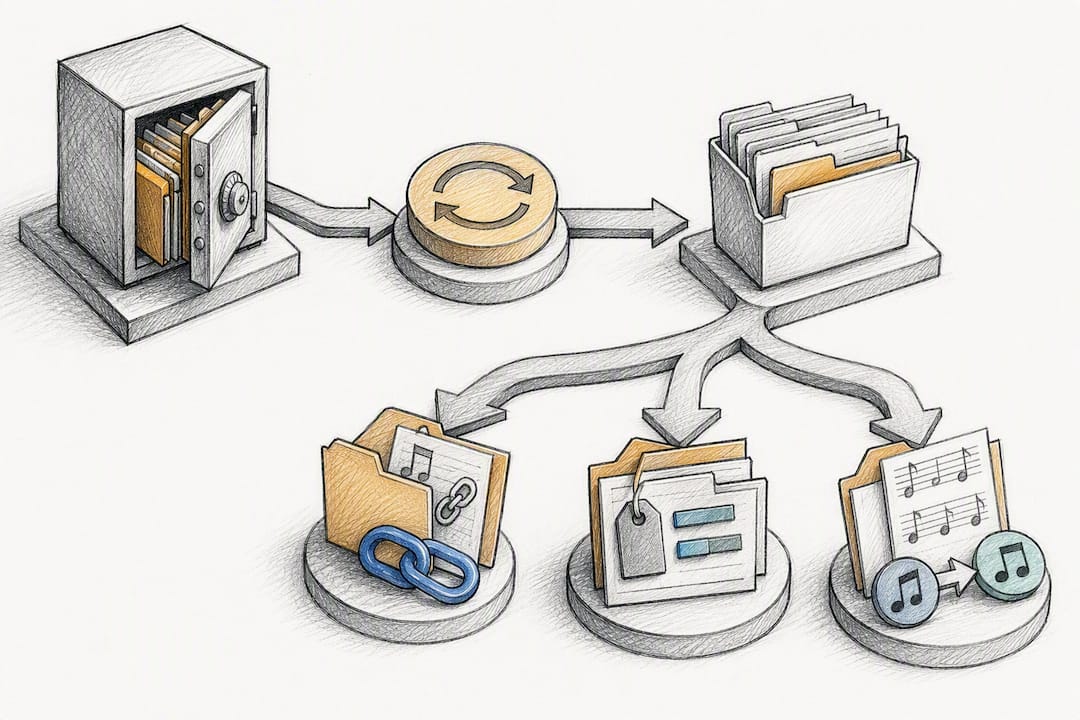
The most common failure mode isn't a corrupted file. It's a cloud link that quietly broke months ago, so the "backup" restores a folder of empty placeholders. Some app-specific restores also require you to manually re-link remote storage after recovery, so don't assume a successful restore message means every attachment came through.
Keep a simple log of test results. If a restore fails twice in a row, that's your signal to loop in IT support or your software vendor rather than troubleshooting alone on a Thursday night.
Organize Now So Recovery Doesn't Turn Into a Scavenger Hunt
A restored library is only as useful as its metadata. If every file just says "song1.pdf," you've technically backed up your library and functionally lost it anyway.
Track these fields at minimum for every song:
- Title and composer, for basic identification and licensing records
- Voicing and key, so worship leaders can find the right arrangement fast
- Usage status, whether it's active, retired, or seasonal
- Licensing tag, flagging public domain versus copyrighted material
Use collections or tags for things like "Advent," "Youth Band," or "Communion Set" so a single song can belong to multiple groupings, something digital cataloging handles far better than a paper filing system ever could. For filenames, a consistent pattern like "Title_Key_Version" beats clever naming every time your future volunteer has to search under pressure. Building your song categories around how your team actually plans services makes this even more useful.
Who Owns the Backup, and What Goes in the Recovery Runbook?
Backups fail during a crisis when nobody knows who's responsible. Assign clear roles: an owner who oversees the whole process, a backup operator who runs the schedule, a verification lead who checks restore tests, and a credential custodian who manages logins.
Your recovery runbook should fit on one page. Include:
- Contacts, who to call first if something breaks
- Backup locations, exactly where each copy lives
- Restore steps, written simply enough for a stressed volunteer to follow
- Verification checklist, the three things to confirm after any restore
- Paper fallback location, in case digital access fails entirely
Avoid storing everything under one person's personal account. Use a shared team credential process instead, so access doesn't disappear when a volunteer moves on. Clear scheduling and role assignments make this far easier to maintain long term.
Tips for Syncing Backups Across Multiple Devices
Worship teams rarely work from one device. Between the worship leader's laptop, a keyboardist's tablet, and a sound tech's phone, syncing becomes its own challenge separate from backing up.
Start by designating one system as the source of truth. When multiple people edit setlists or chord charts independently across devices, conflicting versions pile up fast, and nobody can tell which copy is current. A platform with real-time sync eliminates that guesswork because every device pulls from the same live data instead of a locally saved file that might be three versions old.
Set consistent permissions across devices too. If a volunteer's phone has edit access but their tablet only has view access, they'll eventually make changes on the wrong device and wonder why nothing updated. Match access levels across every device tied to a single user's account.
Check sync status before rehearsal, not during it. A quick habit of confirming "last synced" timestamps on your phone or tablet before you walk into practice catches connectivity issues while there's still time to fix them, rather than discovering a stale setlist mid-song.
Finally, build in offline access for spotty church Wi-Fi. Devices should cache the current setlist locally so a dropped connection during service doesn't leave a musician staring at a blank screen. This matters just as much for backup integrity as it does for live performance, since offline caches occasionally become the only accurate copy after a sync error elsewhere.
How Should You Handle Licensing and Copyright When Backing Up Worship Music?
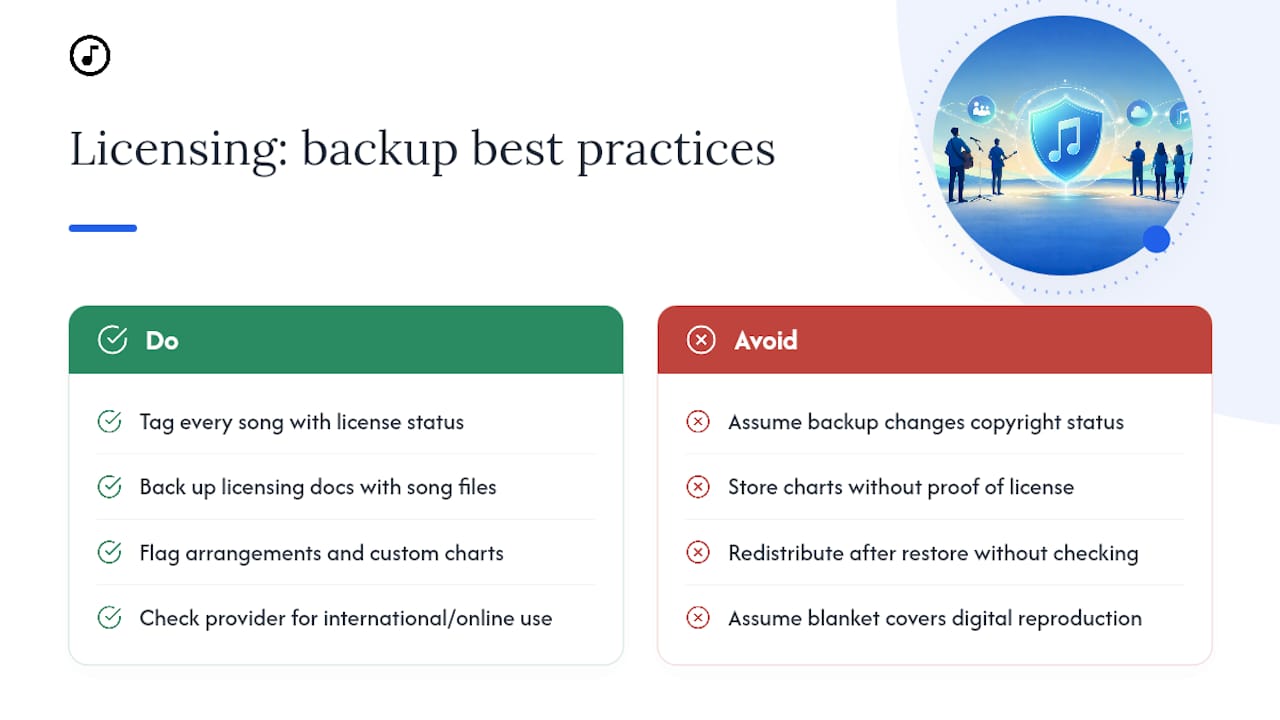
Backing up a song doesn't change its copyright status, and that's where teams get into trouble. Copying, storing, and later distributing worship music still falls under the same licensing rules as using it live, whether the file sits in a cloud folder or a printed binder.
Tag every song with its licensing status as part of your metadata: public domain, covered under a blanket license like CCLI, or requiring separate permission. This flag matters most after a restore, when someone rebuilding a library might reprint or redistribute a file without realizing its license expired or never covered digital reproduction in the first place. Tagging songs this way during cataloging prevents a well-meaning volunteer from accidentally distributing something outside your license terms.
Keep your licensing documentation backed up right alongside your song files, not separately. A backup of chord charts without the corresponding proof of license coverage leaves your church exposed if a question about usage rights ever comes up. This applies to arrangements and custom charts too. Just because your team wrote out a specific voicing doesn't mean the underlying song's copyright terms disappear.
If your church operates internationally or shares content publicly online (livestreams, YouTube uploads), licensing gets more complex, since coverage often varies by distribution method. When in doubt, check directly with your licensing provider rather than assuming your existing agreement covers every use case your backup and restore process might touch.
What Should You Look for in a Cloud Storage Provider for Worship Content?
Not every cloud storage service handles music files, chord charts, and setlist metadata equally well. General-purpose storage works, but a few specific features matter more for worship libraries than for typical business documents.
Version history should top your list. You want the ability to roll back to last week's version of a setlist if someone overwrites it by mistake, not just access to the current file. Look for providers that keep multiple prior versions accessible for at least 30 days.
Attachment handling matters just as much. Chord charts often link to reference audio or annotated PDFs, and some general storage tools break those links during a restore. Confirm any provider you choose preserves file relationships, not just individual files in isolation.
Role-based permissions are worth checking closely too. A provider that only offers all-or-nothing sharing forces you to give every volunteer full edit access, which raises your risk of accidental changes. Look for tiered access, where some team members can view while others can edit or manage.
Finally, weigh export flexibility. A provider that locks your files into a proprietary format works fine until you need to switch tools someday, and then you're stuck. Prioritize services that support standard exports like PDF, ChordPro, or CSV, so your backup stays usable no matter what platform your team adopts next.
Editorial Perspective: Why Simple, Tested Backups Matter for Worship Teams
The failure pattern is almost always the same: a team backs up faithfully for months, then discovers during an actual emergency that the restore doesn't work. Broken links and missing attachments hide until the moment you need the file most.
What actually prevents this isn't more technology. It's a monthly ten-minute smoke test and a one-page runbook a volunteer can follow without calling anyone. Discipline beats sophistication here every time.
— Editorial team
A Simpler Way to Keep Your Song Library Synced and Restorable
Some software solutions give teams a live, synced primary copy that fits directly into a 3-2-1 setup, syncing song updates, transpositions, and setlist changes in real time so the "copy one" stays current without manually emailing PDFs.
Some platforms offer features that usually complicate manual backups, including exportable setlists for local archives, role-based access controls, and presentation modes that keep live service unaffected by storage issues. Pairing a primary synced system with a local archive and an offsite versioned backup completes a 3-2-1 setup that doesn't depend on one person's memory. If you're still organizing files manually, this guide on organizing a church song library pairs well with getting started.
Try Song7 free and see how quickly your team's setlists sync across every device your volunteers use on Sunday morning.
Sources
For deeper technical guidance, review the 3-2-1 backup rule, practical church music library maintenance steps, and Song7's guide to formatting chord charts for reliable restores.
FAQ
How Often Should I Back Up My Worship Song Library?
Automate daily or weekly backups for active files, and run a full restore test monthly to confirm everything actually works, not just that a backup job completed.
What Files Should I Prioritize First When Backing Up Worship Songs?
Start with your active repertoire, the setlists and chord charts your team is currently using, along with their metadata and any licensing tags before expanding to older archives.
Is Cloud Sync the Same as a Backup?
No. Cloud sync mirrors changes across devices instantly, including accidental deletions, while a true backup keeps versioned snapshots you can restore from separately.
Can Song7 Serve as Part of My Backup Strategy?
Song7 works well as the live, synced primary copy in a 3-2-1 setup, letting you export setlists and chord charts to complement your local and offsite backups.
What's the Biggest Mistake Teams Make With Backups?
Assuming a backup works without ever testing a restore. Broken attachment links and missing metadata almost always surface only when someone actually tries to recover a file.