
Yes, a drag-and-drop setlist builder lets you assemble, reorder, and prepare a stage-ready setlist in minutes instead of retyping a document every week. Tools like Song7 handle the reordering by letting you tap, hold, and drop songs into place, and the running time recalculates automatically as you shuffle things around. Moving a song from Set 1 to Set 2 takes one drag, not a cut-and-paste job. That's the whole promise, and it holds up.
TL;DR:
- Drag-and-drop setlist tools automatically recalculate total duration whenever songs are reordered, helping prevent long or short sets during performances.
- On touchscreen devices, tapping and holding a song lifts it for dragging, while on desktops, clicking and dragging simplifies reordering without gesture ambiguity.
- Organizing and tagging your song library with key, tempo, or theme before building a setlist speeds up the process and reduces search errors.
- Real-time synchronization ensures all team members see the latest setlist changes instantly, avoiding confusion or outdated versions during rehearsals.
- Exported PDFs with song details, timing, and cues ensure stage copies are clear, avoiding reliance on small screens or ambiguous verbal instructions.
Table of Contents
- How Does Drag and Drop Actually Work on Different Devices?
- How Do You Build a Setlist From Scratch?
- How Do You Sync a Setlist With Your Whole Band?
- What Should a Stage-Ready Setlist Include?
- What Habits Make Drag-and-Drop Setlists Actually Reliable?
- What Do Real Teams Save by Switching to Drag and Drop?
- Does Drag and Drop Work if You Can't Use a Mouse or Touchscreen?
- Does It Connect With the Other Tools Your Team Already Uses?
- When Should You Trust Drag and Drop vs. Templates?
- Build Your Next Setlist Without the Copy-Paste Chaos
- Where to Verify Device Behavior and Read More
- Sources
- FAQ
How Does Drag and Drop Actually Work on Different Devices?
The mechanics change depending on what's in your hands during rehearsal. On a touchscreen, you typically tap and hold a song title until it visually "lifts" off the list, then drag it to its new spot and let go. On desktop, it's a simpler click-and-drag, since there's no need to distinguish a tap from a scroll gesture. That distinction matters more than it sounds. A phone or tablet has to guess whether your finger wants to scroll the list or grab a song, so most setlist tools build in a short hold before the drag activates.
Apple's own iPadOS drag-and-drop system is worth understanding here, because a lot of setlist apps borrow its behavior. On an iPad, you can lift an item and hover it over a folder to open that folder mid-drag, or use a second finger to keep browsing while the first holds your dragged item. That's a genuinely useful trick during a rehearsal when you're juggling three sets at once.
Not every reorder needs to be manual, either. Some tools offer smart sorting by key or tempo, but for a worship set or a weekly gig, dragging by hand usually beats an algorithm that doesn't know your song leads into a modulation.
How Do You Build a Setlist From Scratch?
Getting from a blank screen to a gig-ready list is faster than most people expect once the habit sticks. Here's the sequence that works for most bands and worship teams:
- Organize your song library first. Tag songs by key, tempo, or theme before you ever touch a setlist, since a tagged library makes quick-add and autocomplete actually fast instead of a scroll-and-hunt exercise.
- Create your sets. Most tools let you build multiple sets or services inside one setlist, useful for a two-set bar gig or a Sunday service split into worship and communion.
- Add songs with quick-add or drag them in from your library. Quick-add with autocomplete beats retyping a title you've played fifty times.
- Reorder within the set by dragging songs into their final position, watching the flow the way you'd sequence an album.
- Move songs between sets or into folders for encores, spares, or seasonal collections, all with the same drag gesture.
- Duplicate a previous setlist when this week's service or show closely mirrors last week's, then tweak instead of rebuilding.
- Check the running-time display as you finalize the order, and drop a couple of spare songs at the bottom in case a request comes in or a set needs to stretch.
Pro Tip: Build your "spares" section first, before the main set. That way, when a running time comes up short, you're dragging a proven song up instead of scrambling to find one that fits the key and tempo you need.
How Do You Sync a Setlist With Your Whole Band?
A setlist that lives on one phone is a setlist that causes confusion by Thursday. Real-time sync means every band or team member sees the same, current version the moment you finish editing, which is different from a shareable export link that freezes the setlist at the moment you sent it. Both have their place, but only one keeps everyone honest.
- Give edit rights to the leader or a co-leader, and keep everyone else on view-only, so nobody accidentally drags a song out of order thirty minutes before doors.
- Use real-time sync for anything still in motion; use an exported link once the list is locked, especially for guest musicians who don't need an account.
- Watch for offline edits. If two people edit the same setlist without a connection, the tool should flag a conflict rather than silently overwrite one version, so check how your platform handles it before you rely on it during a busy week.
- Send the final version at least a day before rehearsal, not twenty minutes before soundcheck, so musicians actually have time to look at it.
What Should a Stage-Ready Setlist Include?
A screen you scroll during a show is worse than no setlist at all. Whatever you hand out or display, it should be built for a glance, not a read. That means clean exports matter as much as the drag-and-drop building itself.
- PDF export for printed stage copies or a simplified view for tablets mounted on a mic stand.
- Song key and tempo listed next to each title, since transposing on the fly during a show is not the moment to discover you're a step off.
- Estimated duration and start time for each song, so the sound engineer and the drummer watching the clock are working from the same numbers.
- Cues for transitions, breaks, or an encore, marked clearly enough that a fill-in musician could follow along cold.
Some platforms extend into MIDI or show-control triggers for bands running backing tracks or lighting cues, though most volunteer teams never need to go that far. A presentation mode built around your setlist solves the more common problem: getting lyrics or chords in front of the team without anyone squinting at a phone.
What Habits Make Drag-and-Drop Setlists Actually Reliable?
The tool matters less than the habits around it. Standardize your key and tag conventions across your entire library so quick-add actually finds what you're looking for on the first try, instead of three versions of the same song title with different capitalization. Build a template for your most common service or set format, then copy it forward each week rather than starting cold, an approach echoed by how Setlist HQ describes its own copy-from-previous feature.
Keep two or three spare songs pinned near the bottom of every setlist for last-minute requests, and mark breaks and encores with a visual cue so nobody misses the moment. When drag-and-drop stops responding mid-edit, refresh the app before you assume the setlist is broken. A stuck sort order usually clears with an app restart, and locking the sort order once you're happy with it prevents an accidental bump from someone else's screen.
Pro Tip: Lock your setlist's sort order about an hour before a service or show. It stops well-meaning last-minute "helpers" from reordering things mid-warmup.
What Do Real Teams Save by Switching to Drag and Drop?
Sync Setlists In 5 Minutes walks through how volunteer bands cut rehearsal prep time by syncing setlist updates instantly instead of texting a revised song order the night before. Share Setlists With Worship Teams covers the flip side: fewer last-minute errors when everyone opens the same shared list Sunday morning instead of guessing which version is current.
For teams running lyrics on a screen during the service, the Onstage Lyrics Display setup guide is worth a look too, since a clean setlist only helps if what's displayed on stage matches it exactly.
Does Drag and Drop Work if You Can't Use a Mouse or Touchscreen?
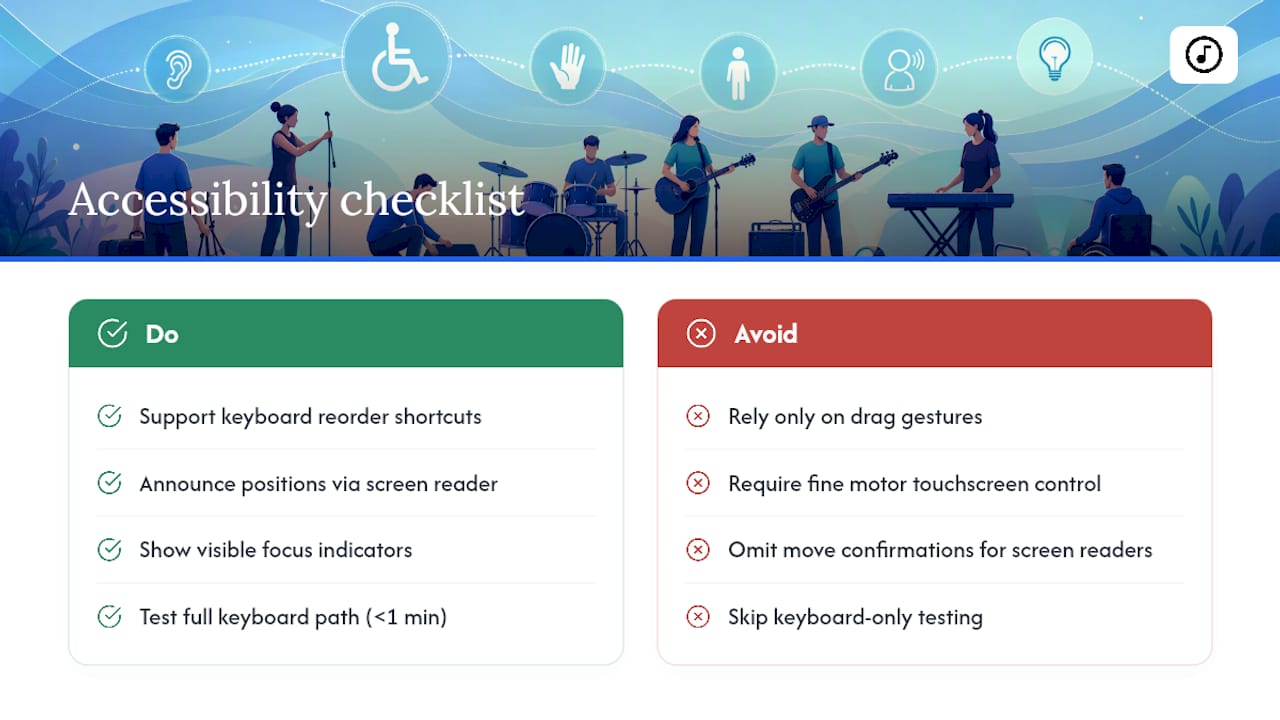
Not every musician navigates a screen the same way, and a setlist tool that only works by dragging with a finger or mouse locks people out. Look for keyboard shortcuts that move a selected song up or down in the order, since that accomplishes the same reorder a drag does, just without requiring fine motor control on a touchscreen.
Screen reader compatibility matters here too. A well-built setlist tool announces a song's position when it's selected and confirms the new position after a move, so a visually impaired band member using assistive technology isn't locked out of building or checking a set. Focus indicators should be visible enough that anyone tabbing through a list with a keyboard can see exactly which song is selected before they move it.
This isn't a niche concern for a volunteer team. Church music ministries often include members with a range of physical abilities, and a tool that only works with a steady hand and a touchscreen quietly excludes some of them. If you're evaluating a setlist platform, test the keyboard path yourself: try to build and reorder a full set without touching your mouse or trackpad. If you can't do it in under a minute, that's worth flagging before your team commits to the tool for weekly use.
The WorshipChords help documentation on setlist basics is a useful baseline for what any setlist tool, accessible or not, should offer at minimum: naming, adding, reordering, and sharing.
Does It Connect With the Other Tools Your Team Already Uses?
A setlist rarely lives in isolation. Most bands and worship teams already have a chord chart library, a scheduling tool, and maybe a church management system tracking who's serving each week. Drag-and-drop setlist builders earn their keep when they connect to those instead of forcing a second, disconnected workflow.
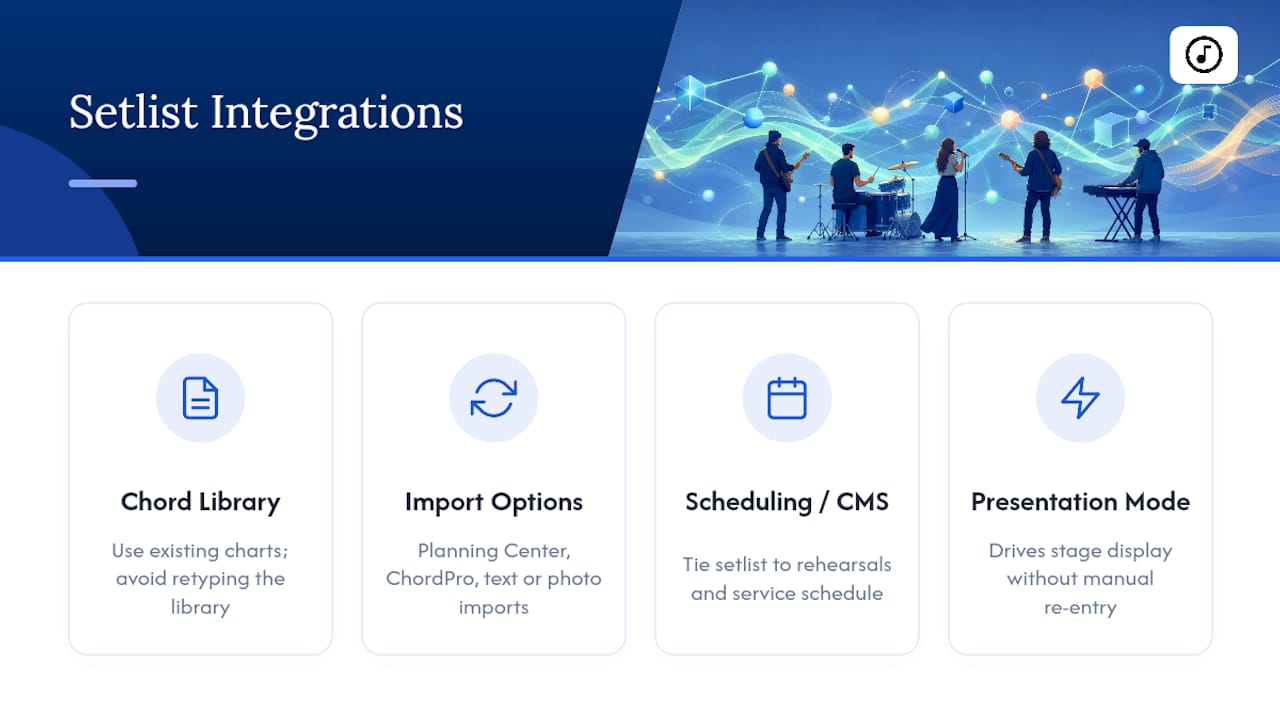
Import options matter here more than people expect. If your team has years of songs and setlists sitting in another platform, exporting from Planning Center into Song7 can take under fifteen minutes rather than the weekend it feels like it should take. Importing from ChordPro files, plain text, or even a photo of a handwritten chart means you're not retyping a library that already exists somewhere else.
On the scheduling side, tools that tie a setlist directly to your team's rehearsal and service schedule cut down on the double bookkeeping of managing "who's playing" in one app and "what we're playing" in another. And for teams running lyrics or chords on a stage display, integration with a presentation mode means the setlist you built by dragging songs into order is the exact same list driving what the congregation or audience sees on screen, without a manual re-entry step in between.
Device support for iPads used as digital music stands is its own consideration, and resources like The DeputIE user manual cover the device-side setup that complements whatever setlist software you're running on top of it.
When Should You Trust Drag and Drop vs. Templates?
Drag-and-drop wins for small teams because it's fast and forgiving. There's no learning curve, and reordering a Sunday set takes seconds. Once you're managing multiple venues, complex routing, or recurring large events, templates and copy-forward tools start pulling their weight. Start with drag-and-drop. Add templates once your setlists start repeating themselves.
— Editorial team
Build Your Next Setlist Without the Copy-Paste Chaos
There are setlist apps built around this exact workflow: a drag-and-drop setlist builder that updates running time automatically, syncs changes to your whole team in real time, and exports a clean, stage-ready PDF when you're ready to print or project. You also get quick-add from your song library, chord transposition, and a presentation mode for lyrics, all inside the same app your team already opens each week.
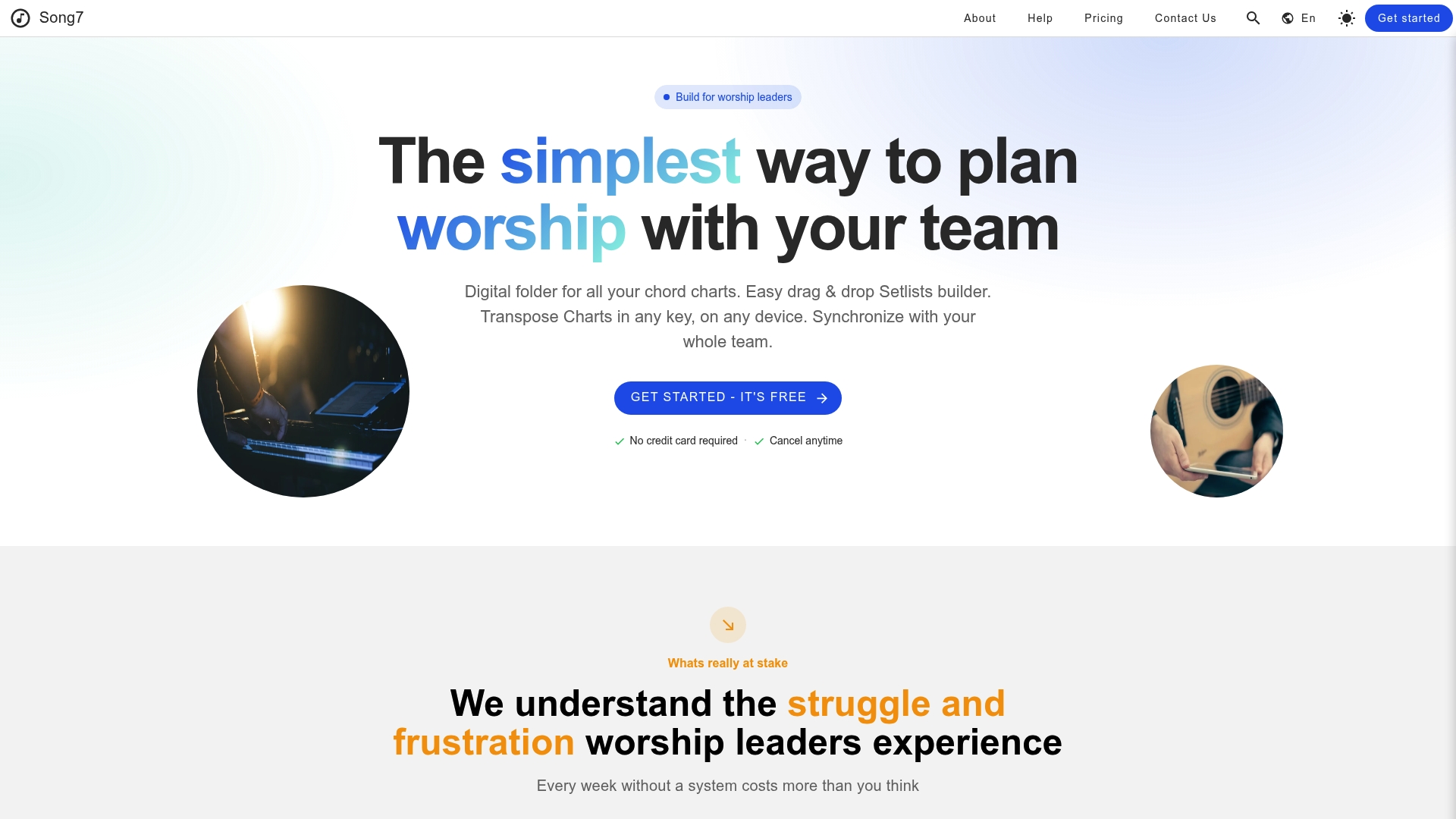
If Thursday-night texts about "which version of the setlist is current" sound familiar, that's the exact problem syncing was built to solve, and the rehearsal walkthrough shows how quickly a volunteer band can get there. When you're ready to stop rebuilding the same list every week, start a free trial on Song7's setlist builder and drag your first set into place before your next rehearsal.
Where to Verify Device Behavior and Read More
Apple's iPadOS user guide documents the native drag-and-drop gestures referenced throughout this article. For deeper reading on syncing and sharing, see Song7's rehearsal sync walkthrough and worship team sharing guide. The WorshipChords setlist overview covers the basic feature set worth expecting from any builder.
Sources
FAQ
Can I drag and drop setlists on a phone, not just a tablet?
Yes, most setlist builders support tap-and-hold dragging on phones, though the smaller screen makes tablets or desktop easier for building longer, multi-set lists.
Does reordering a setlist update the running time automatically?
In tools built around drag-and-drop workflows, yes. The total duration recalculates the moment you drop a song into a new position, so you always know if a set is running long.
What's the difference between real-time sync and a shared link?
Real-time sync means every team member sees edits the instant they happen, while a shared link freezes the setlist at the moment it was sent, useful for guest musicians who don't need ongoing access.
Can I use drag-and-drop setlists without a mouse or touchscreen?
Reliable tools include keyboard shortcuts to move songs up or down in the order, along with screen reader support, so building and checking a set doesn't require precise touch or click control.
Does Song7 support exporting a printable stage copy?
Yes, you can export a clean, stage-ready PDF that includes song keys and timing, so your printed or projected copy matches exactly what you built by dragging songs into place.