
Syncing setlists means every band member's phone, tablet, or laptop shows the same song, same key, same order, updated live the moment the leader makes a change. The result is simple: nobody flips to the wrong chart mid-song. Start with an app built for the stage, one that offers leader/follow control and keeps a cached copy on every device when Wi-Fi drops.
TL;DR:
- Most apps rely on a leader/follow model with real-time push connections to ensure updates within a second or two, crucial for live performance accuracy.
- Offline caching and local network fallback are essential to prevent setlist freezes or display failures when Wi-Fi quality is poor or drops mid-set.
- Proper metadata, including song key, tempo, and sections, streamlines setlist creation, filtering, and reduces errors caused by inconsistent tagging or version mismatches.
- Routine full sync tests before shows and a quick familiarization drill help prevent common issues like conflicting edits, version mismatches, or app crashes during a performance.
- Cross-platform compatibility depends on cloud logins and consistent formatting to ensure seamless setlist access and display across iOS, Android, and Windows devices.
Table of Contents
- How Real-Time Setlist Sync Actually Works
- Key Features to Evaluate in a Sync-Capable Setlist App
- What Good Band Sync Looks Like on Stage (and Where It Breaks)
- How to Set Up Synced Setlists for Rehearsal and the Stage
- Troubleshooting Sync Problems Before They Ruin a Set
- Building Your Song Catalog Before You Build a Setlist
- Why Version History Matters More Than You Think
- Matching Setlist Layouts to the Room You're Playing
- Keeping Setlists Synced Across iOS, Android, and Windows
- Handling Complex Songs With Multiple Parts and Time Signatures
- Staying in Sync When the Set Changes on the Fly
- Connecting Setlist Sync With DAWs and MIDI Gear
- Song7's Approach to Team Sync for Volunteer Musicians
- Try Song7 for Setlists That Actually Stay in Sync
- Sources
- FAQ
How Real-Time Setlist Sync Actually Works
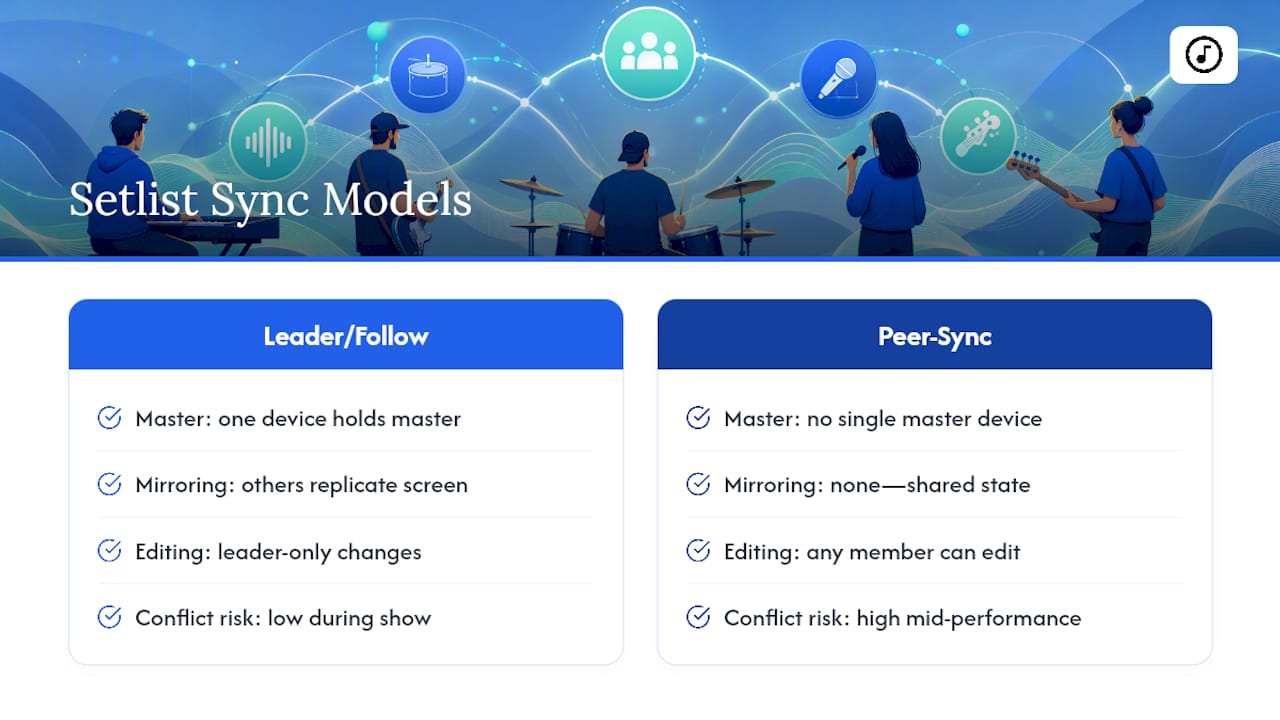
Most sync-capable apps run on one of two models. In a leader/follow (conductor) setup, one device holds the master setlist, and everyone else's screen mirrors it automatically, including song changes, transposed keys, and scroll position. In a peer-sync model, any band member can edit and the change pushes to the group, which works fine for planning but gets risky mid-performance when two people edit at once.
The technical backbone matters more than most musicians realize. Apps built on a real-time push connection (think WebSocket-style transport) update everyone within a second or two. Apps that rely on periodic cloud polling might take ten or fifteen seconds to catch up, an eternity when you're four bars from a key change. That gap is exactly why forum threads full of touring musicians keep asking for live-updating shared setlists that behave the same way across every phone and tablet on stage.
Lyrics, chords, and running order all travel through the same sync channel, so a single update from the leader touches every screen at once. None of it matters, though, if the venue's Wi-Fi is garbage. That's why offline caching isn't a nice extra. It's the difference between a smooth set and a frozen screen during your bridge.
Key Features to Evaluate in a Sync-Capable Setlist App
Not every app that claims to "sync" behaves the same way once you're actually on stage. Before you commit a whole team to one tool, check it against this list:
- Leader/follow control with clear device limits. Some apps cap how many devices can follow a single leader session, so confirm your band's headcount fits.
- Offline mode with automatic caching. Turn off Wi-Fi mid-rehearsal and see whether the setlist stays visible. If it goes blank, keep looking.
- Song metadata support. Tempo, key, duration, and chord or lyric formatting should travel with the song, along with one-tap transpose.
- Import and export flexibility. ChordPro, PDF, and CSV compatibility saves hours when you're migrating a decade of paper charts.
- Sharing controls. Invite links or stage codes with adjustable permission levels (viewer vs. editor) keep one nervous volunteer from accidentally reordering the set.
- Hardware integration. Bluetooth foot pedal support and external display output matter if you're running a stage monitor or need hands-free page turns.
Some products lock the sync feature itself behind a paid tier. Loop Community's sync button, for example, is a Pro-membership feature, and Apple's own billing documentation confirms this is a normal pattern across app subscriptions, not a red flag specific to one product. Always check what's included in a free tier before you build your whole workflow around it.
What Good Band Sync Looks Like on Stage (and Where It Breaks)
A well-run stage setup usually has one clearly designated leader device, often the worship leader's tablet or the bandleader's phone, and everyone else joins that session through a code or link before the set starts, not during soundcheck chaos. Musicians on forums have described exactly this workflow as the dream scenario: one setlist updating live across every phone and tablet in the room, so nobody's guessing which song is next.
The failure modes are predictable. A network drop mid-set freezes follower screens on the last synced song. Version mismatches happen when one player updates their app and another doesn't, causing charts to render differently. Conflicting edits crop up when two people try to reorder the set at the same time, usually right before doors open.
Pro Tip: Run a five-minute sync drill at your last rehearsal before a show: have the leader advance songs, transpose a key, and trigger auto-scroll while every follower device watches. If a foot pedal is part of your setup, test it in that same drill, not for the first time on stage.
Experienced players consistently favor this kind of rehearsal checklist over discovering a bug live. When Wi-Fi is genuinely unreliable, a local network or offline-capable PWA mode beats cloud sync every time, since it doesn't depend on venue internet at all.
How to Set Up Synced Setlists for Rehearsal and the Stage
Getting a band from paper charts to a fully synced setlist takes less time than most teams expect. Follow this order:
- Build a shared song library first. Import your core songs using ChordPro or PDF files if your app supports them; this saves you from retyping lyrics and chords for every song you already own. Organizing your song library properly at this stage prevents a mess six months later.
- Build the setlist and turn on leader/follow (or Stage Mode). Drag songs into order, confirm keys and tempos, then designate the leader device.
- Invite bandmates with a link or code. Confirm every device, iOS, Android, whatever mix your band runs, can actually open and follow the session.
- Run a full sync test. Advance songs, transpose a key, trigger auto-scroll, and test foot pedal control if you use one, well before doors open.
- Build a fallback. Keep a cached offline copy, a printed cue sheet, or a single backup leader device in case the primary one dies mid-set.
Treat this as part of your normal rehearsal and scheduling routine, not a one-time setup task, since new members and new songs mean you'll repeat steps 1 through 4 fairly often.
Troubleshooting Sync Problems Before They Ruin a Set
When a device won't join the session, check three things first: the invite link is current, everyone's running the same app version, and the leader device actually has leader status active. Version mismatches cause more sync failures than genuine bugs do.
If content looks different across devices (wrong key, missing verse, garbled formatting) the culprit is usually import fidelity or a transpose setting that didn't propagate. Community troubleshooting threads consistently point to the same fix: confirm app versions match, then re-send invites before assuming something's broken.
If the network drops mid-set, don't panic. A properly configured app falls back to its last cached copy automatically. If yours doesn't, switch to a phone hotspot or a local network connection rather than fighting public Wi-Fi.
Battery and display readiness deserve equal attention. Disable auto-lock on every device before you walk on stage, set brightness high enough to read under stage lighting, and bring chargers. A synced setlist does nothing for you if the screen goes dark in verse two.
Building Your Song Catalog Before You Build a Setlist
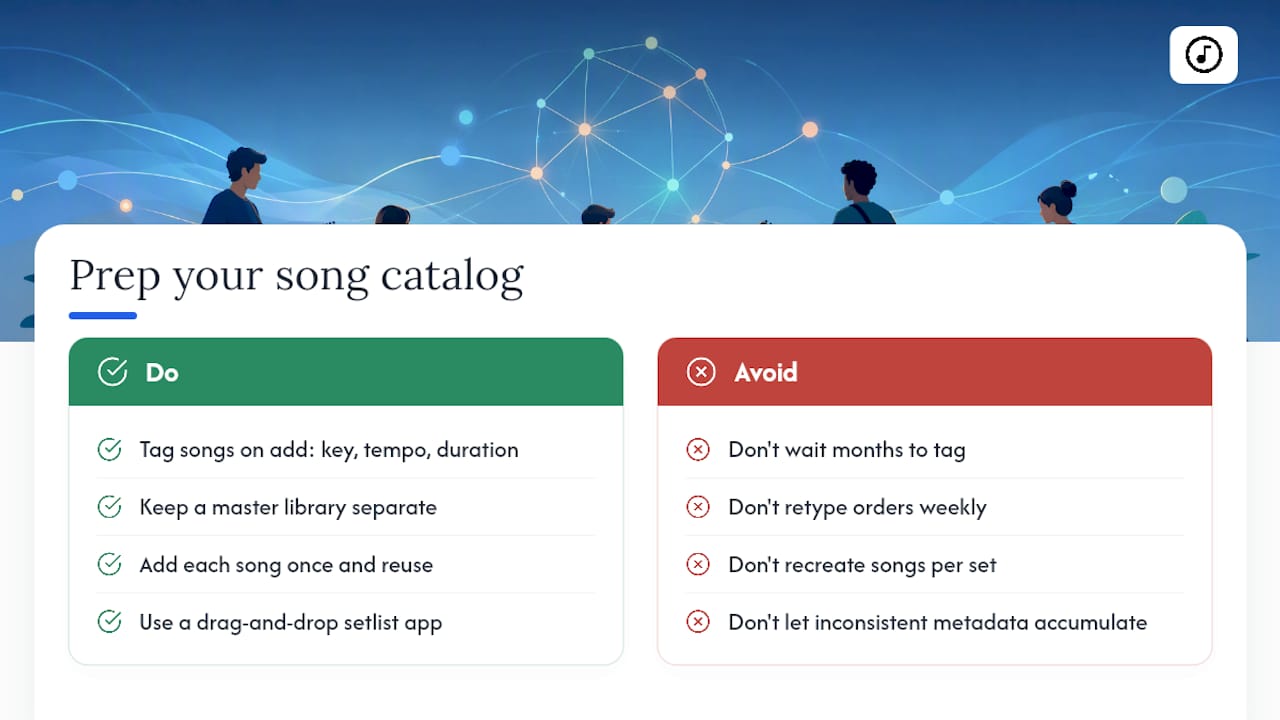
Sync only works as well as the catalog behind it. A setlist app that supports drag-and-drop organization lets you build a set in minutes instead of retyping song orders into a notes app every week, but that speed depends on a clean library underneath it.
Tag each song with key, tempo, and typical duration when you first add it, not months later when you're scrambling before a Sunday or a gig. A well-tagged catalog lets you filter by key or tempo when you're building a set that needs to flow, slow ballad into a bridge, upbeat opener into a quieter transition, without scrolling through every song you own. Drag-and-drop reordering then becomes a five-minute task instead of a rebuild.
Consistent metadata also matters far beyond your own band. In the broader music industry, accurate tagging and catalog organization is what makes songs findable and usable at scale, and the same principle applies at the scale of a single church or band: the more consistently you tag now, the less untangling you do later.
Keep your master library separate from individual setlists. Add a song once, with correct chords and metadata, then reuse it across dozens of sets rather than recreating it each time. That single habit prevents most of the version-mismatch headaches described earlier.
Why Version History Matters More Than You Think
Setlists change right up until showtime, sometimes during it. A worship leader swaps a closing song an hour before service. A bandleader drops a tune because the crowd's energy shifted. Without version tracking, you're stuck guessing whether the setlist on your phone is actually the current one.
Apps with real version control let you see when a setlist was last edited and by whom, which matters the moment two team members touch the same set independently. If a volunteer accidentally deletes a song or reorders the whole set by mistake, history tracking lets you roll back instead of rebuilding from memory.
History tracking also solves a quieter problem: accountability across a volunteer team. When five different people have edit access to the same setlist, a visible change log tells you exactly what happened between Tuesday's rehearsal and Sunday's service, rather than leaving everyone to compare notes and guess. That transparency reduces the kind of tension that builds when nobody's sure who changed the key on the opening song.
Matching Setlist Layouts to the Room You're Playing
A setlist built for a small acoustic coffeehouse gig looks nothing like one built for a full band on a large stage, and your display should reflect that. Font size, chord visibility, and how much scroll room you leave between verses all change depending on distance from the screen and how much light is hitting it.
For close-quarters settings, a compact layout with smaller chord diagrams works fine since you're standing right next to your screen. For a stage setup with monitors several feet away, larger fonts and higher contrast themes keep lyrics readable under bright stage lighting. Some teams switch themes entirely between rehearsal (dense, chord-heavy) and performance (clean, lyrics-forward) for the same songs.
If your team runs a dedicated onstage monitor or projector, layout customization becomes even more important, since what looks fine on a phone can be unreadable blown up on a screen ten feet away. Getting display setup right once saves you from squinting through an entire set later.
Keeping Setlists Synced Across iOS, Android, and Windows
Bands rarely run on a single platform. Someone's got an iPhone, someone else swears by Android, and your keyboard player is running an old Windows laptop propped on a stand. Sync only works if the app treats all three as equal citizens rather than favoring one.
Cross-platform sync depends on cloud accounts rather than local file transfers, which is why most reliable apps ask everyone to sign into the same team or band account rather than emailing PDFs around. App store listings for setlist tools consistently list platform availability across iPhone, iPad, Android, and web precisely because mixed-device bands are the norm, not the exception.
Before committing to any tool, actually test it on the oddest device in your lineup, not just the leader's phone. A web-based or PWA version often solves the Windows laptop problem better than a native app that only ships for mobile. Confirm formatting, chord rendering, and auto-scroll behave the same way across every platform your band actually uses, since a chart that looks perfect on iOS but breaks on an older Android tablet defeats the whole point of syncing in the first place.
Handling Complex Songs With Multiple Parts and Time Signatures
Not every song is four verses and a chorus in 4/4 time. Worship sets in particular often include songs with a bridge that repeats an unpredictable number of times, a key change halfway through, or a time signature shift for a specific section. Your setlist tool needs to handle that complexity without forcing you to fake it with duplicate song entries.
Look for apps that let you mark distinct sections (intro, verse, bridge, outro) within a single song chart, so the leader can jump directly to a section rather than scrolling through the whole thing during a live moment. Chord and lyric formatting should support mid-song key changes cleanly, showing the new key clearly rather than burying it in a footnote.
For songs with unusual time signatures, a built-in metronome that can switch tempo or feel between sections helps musicians internalize the change during rehearsal rather than guessing on stage. This matters more for bands playing original material or complex arrangements than for straightforward cover sets, but even simple worship songs sometimes throw in an extra half-measure that trips up a volunteer who's only seen the chart twice.
Staying in Sync When the Set Changes on the Fly
Live performance rarely goes exactly to plan. A pastor runs long and cuts a song. The crowd's energy calls for one more encore. A string breaks and you need a filler tune while someone swaps it out. Your sync setup needs to handle these moments without falling apart.
The single biggest advantage of a leader/follow model here is speed: the leader swaps or reorders a song, and every follower's screen updates within a second or two, no shouting across the stage or flipping through a binder. That instant propagation is the entire point of real-time sync, and it matters most exactly when things go off-script.
Keep a short list of "flex songs," ones your whole band knows cold, easily insertable into any point in the set without rehearsal. Add them to your library ahead of time so they're one tap away rather than something you have to build from scratch mid-service. If you're improvising a transition or vamp, communicate verbally first, then update the setlist app once things stabilize, rather than trying to type while playing. Sync tools support spontaneity. They don't replace the need for a quick glance and a nod between bandmates.
Connecting Setlist Sync With DAWs and MIDI Gear
Bands running click tracks, backing tracks, or automated lighting cues often want their setlist tool talking to their digital audio workstation or MIDI controller, not just displaying lyrics. This is where setlist apps vary widely: some stay purely visual, while others send program change messages to trigger patches or scenes as the leader advances through the set.
If your band uses in-ear click tracks synced to a DAW, look specifically for MIDI output support tied to setlist position, so advancing to the next song can automatically switch the backing track or amp patch without a separate operator riding a laptop. Not every setlist tool offers this, and it's a genuinely different feature category from lyrics-and-chords sync, so confirm it explicitly rather than assuming it's included.
For worship teams without click tracks or heavy MIDI rigs, this integration matters far less than the core sync and display features covered earlier. Weigh it against your actual setup rather than treating it as a must-have checkbox.
Song7's Approach to Team Sync for Volunteer Musicians
Worship teams face a specific version of the sync problem: rotating volunteers, inconsistent tech comfort, and a Sunday deadline that doesn't move. Song7 was built around that reality, with real-time team syncing, a presentation mode for lyrics display, and simple import options so a leader isn't retyping chord charts from memory.
Role-based invites matter more for volunteer teams than for professional bands, since not every musician needs edit access to the master setlist. Giving a guest vocalist view-only access while the worship leader retains full control removes a whole category of accidental edits. Built-in rehearsal tools, including a metronome, help teams prepare together even when they can't all be in the same room until Sunday morning.
— Editorial team
Try Song7 for Setlists That Actually Stay in Sync
If your team is still texting chord charts or hoping everyone remembered to update their PDFs, a modern app can replace that scramble with one shared, live setlist. Every feature covered above—real-time sync, presentation mode, ChordPro and text import, chord diagrams, and rehearsal tools like a built-in metronome—was built specifically for volunteer worship teams who need reliability without a steep learning curve.
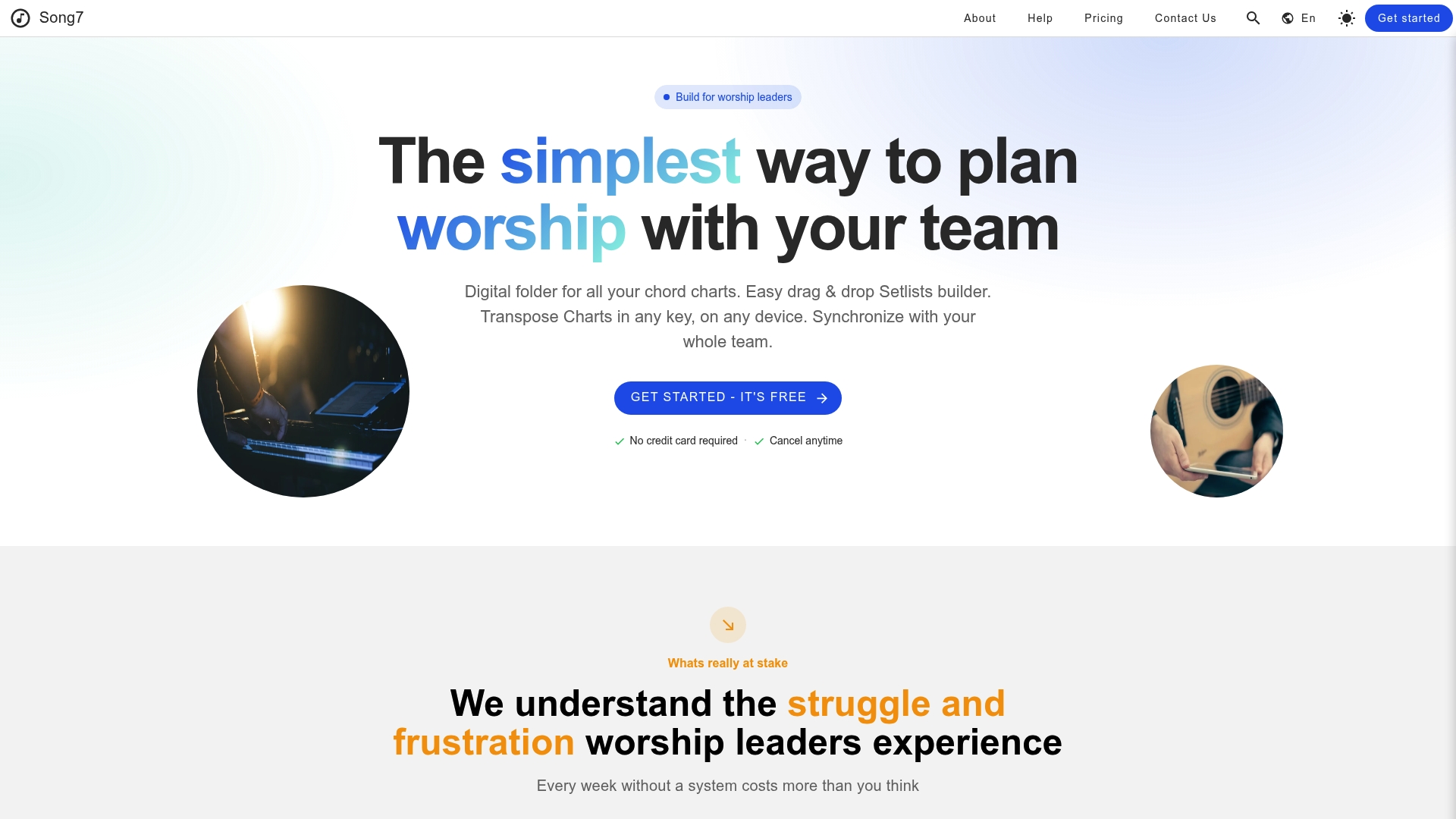
Getting started takes less time than your next rehearsal. Sign up for a free trial, import your existing song library, and build your first setlist with drag-and-drop organization. Then invite your team, assign roles so the right people have edit access, and run a quick sync test before your next service. You can explore Song7's full feature set and see exactly how team syncing, presentation mode, and rehearsal tools work together for your context.
Sources
- Musicians: imagine your whole band's setlist updating live ...
- Loop Pro - The Sync Button - Loop Community Blog
- Support
FAQ
What Does It Mean to Sync Setlists?
Syncing setlists means every band member's device shows the same current song, key, and order in real time, updated automatically whenever the leader makes a change.
Do I Need Internet to Sync Setlists During a Show?
You need an internet or local network connection for live updates to propagate, but a well-built app caches the setlist offline so the current set stays visible even if the connection drops.
Can I Import Existing Chord Charts Into a Sync-Capable App?
Most modern setlist apps support importing from ChordPro files, plain text, or PDFs, which saves you from retyping an existing song library from scratch.
What Happens if Two Band Members Edit the Setlist at the Same Time?
This is exactly what leader/follow models prevent: one device holds edit control while others follow automatically, avoiding the conflicting-edit problem that peer-sync setups can run into.
Does Setlist Sync Work Across iOS, Android, and Windows Devices?
Yes, as long as the app uses a cloud account rather than local file transfer, cross-platform sync should work the same way regardless of which device each band member uses.