
The fastest reliable way to share a setlist with your team is in-app team sync, where one update pushes to every member's device instantly. When that's not an option, publish a stable view-only link or export a timestamped PDF into a shared cloud folder. Either way, check permissions and confirm every device has the latest version before you leave for church. Some platforms build this exact workflow in from the start, so volunteers never guess which file is current.
TL;DR:
- Share setlists via a publish link for single use, but ensure offline access with cached content or a PDF when Wi-Fi is unreliable.
- Use clearly named export files or cloud folders for ongoing collaboration, with permissions set by role to prevent accidental edits.
- Run a thorough sync verification the night before the service to confirm all devices reflect the latest setlist and key changes.
- Lock the master setlist 48 hours before the event and keep a change log to prevent unauthorized or accidental modifications.
- Song7 streamlines setlist building, real-time syncing, transposition, and presentation, minimizing setup time and reducing human error.
Table of Contents
- Three Ways to Share Setlists With Your Team (and When to Use Each)
- How Do You Set Up Real-Time Setlist Syncing for Your Team?
- Sharing Setlists Across forScore, iPad, Android, and Desktop
- What Permissions and Version Control Should Your Team Use?
- Your Pre-Service Setlist Checklist, From Day-Before to Showtime
- How Song7 Puts These Workflows Into Practice
- Should Your Team Use a Simple PDF Setup or a Full Sync Platform?
- Try Song7 for Your Next Rehearsal and Sunday Service
- Sources
- FAQ
Three Ways to Share Setlists With Your Team (and When to Use Each)
You have three real options for getting a setlist into your team's hands, and each one fits a different situation. Here's how to think through them.
1. Publish a link. Most modern setlist tools let you generate a shareable link that opens to a view-only version of your setlist. This is the fastest option for one-off use, like sending a guest musician the songs for a single Sunday. The catch: links usually require an internet connection unless the app caches content locally, so they're risky for basement rooms or spotty rural Wi-Fi.
2. Export and import files. PDF and ChordPro remain the two formats nearly every church music app can read. Export your setlist, name the file clearly, and send it through email, text, or AirDrop. A naming convention saves you real headaches later:
2026-03-15_SundayAM_Setlist_v2.pdfEasterService_Chords_FINAL.pdfYouth_Worship_March_Draft.pdf
Vague names like "Setlist.pdf" or "Songs2.pdf" are how three different versions end up floating around a group text by Saturday night.
3. Cloud folders. A shared Google Drive, Dropbox, or iCloud folder works well for ongoing collaboration across many services. Set up one main folder per team, with subfolders by month or series, and keep permissions locked to "can view" for most members and "can edit" for leaders only.
For single-use sharing, publish a link. For ongoing collaboration across a season, use a cloud folder. For rehearsal prep where musicians need to mark up charts by hand, export a PDF they can print or annotate.
How Do You Set Up Real-Time Setlist Syncing for Your Team?
Real-time sync means one edit from you updates the setlist on every team member's screen, without anyone re-downloading or re-importing anything. Here's the setup sequence most platforms follow, including the invite model MultiTracks documents for adding your team to setlists.
- Invite each member by email or shared link, and assign a role (leader, editor, or viewer) at the point of invite.
- Build or update the setlist once, then publish it so the sync pushes to everyone connected.
- Confirm transpositions and chord charts sync correctly, not just the song titles.
- Verify presentation mode displays match across devices if you're running onstage lyrics.
Before service, run a quick version check: open the app on two different team members' phones and confirm the song order and key match. Some platforms, including tools built on Planning Center integrations, can auto-add a team roster so you're not manually inviting new volunteers every month.
Always have a fallback. Export an emergency PDF the morning of service and drop it in your cloud folder or send it by text, so a dead Wi-Fi router doesn't take down your whole worship set.
Pro Tip: Run your sync verification the night before, not ten minutes before doors open. A key change that didn't propagate is a lot easier to fix at 8 p.m. Saturday than 8:50 a.m. Sunday.
Sharing Setlists Across forScore, iPad, Android, and Desktop
Every device handles shared files a little differently, and knowing the quirks ahead of time saves you from onstage surprises.
- forScore users: Understand the difference between a folder (a static grouping of pieces) and a setlist (an ordered, service-specific sequence). Use the export or share menu to generate a shareable file, and name it with the date and service type so a bandmate importing it knows exactly what they're getting.
- iPad and iOS: Apps rely on the Files app and iCloud Drive to manage shared files across apps, according to Apple's own iPad user guide. If a shared PDF isn't showing up where you expect, check that the app has Files permission enabled and that automatic downloads are turned on, since this is one of the most common troubleshooting steps for missing updates.
- Android: Cloud apps like Drive or Dropbox often save downloads to a generic "Downloads" folder instead of the app's working directory. Standardize on one cloud folder structure across your team so nobody's hunting through random directories before service.
- Desktop: Keep one master folder with a read-only master PDF that anyone can grab for quick printing or a backup display feed if the primary presentation system fails.
What Permissions and Version Control Should Your Team Use?
A simple three-role system prevents most accidental edits before they happen.
- Leader: full edit and publish rights, the only role that can push changes live.
- Member: view and practice access, no editing permission on the shared master.
- Guest: view-only, ideal for a fill-in musician playing a single service.
Lock the master setlist 48 hours before service. After that point, only the leader publishes edits, even small ones like a key change.
Timestamp every file version and keep a short change log noting who changed what and when. Store the previous version somewhere accessible, so a bad edit can be rolled back in seconds instead of rebuilt from memory. If someone loses access or a permission breaks, revoke and reinvite rather than troubleshooting a broken link. Song7's own permissions checklist walks through this exact setup in about 20 minutes.
Your Pre-Service Setlist Checklist, From Day-Before to Showtime
Run this sequence and most last-minute chaos disappears before it starts.
Day before: Finalize the setlist, publish any last updates, and confirm transpositions and chord charts match what musicians rehearsed.
Two hours before: Confirm your key players (drummer, keys, vocal lead) have the latest copy open on their own device. Test the presentation display on the actual screen you'll use live.
Ten minutes before: Run one last sync check across two devices, assign who's operating the onstage display, and export an emergency PDF backup just in case.
- Communicate key transitions and any nonverbal cues for changes between songs during rehearsal, not for the first time onstage.
Pro Tip: Assign one specific person as the "display operator" every week, even in a small team. When everyone assumes someone else has it, nobody actually clicks next.
How Song7 Puts These Workflows Into Practice
Song7 was built specifically around the steps above, not as a general file-sharing tool retrofitted for churches.
- Drag-and-drop setlist building lets you assemble a service in minutes instead of retyping song orders.
- Instant sync pushes every update to the team the moment you publish, matching the real-time workflow described above.
- Transposition tools sync key changes across every device automatically, so nobody's stuck reading the wrong chord chart.
- Presentation mode keeps onstage lyric displays consistent, whether the operator is running it from an iPad or a laptop.
The interface stays simple by design, since most teams are volunteer-run and can't spend an hour learning software before rehearsal. Permission levels and song import from text, photos, or ChordPro cut down setup friction further. For deeper reading, Song7's blog covers worship team scheduling and organizing a church song library in more depth. Try one service with it before deciding on full adoption.
Should Your Team Use a Simple PDF Setup or a Full Sync Platform?
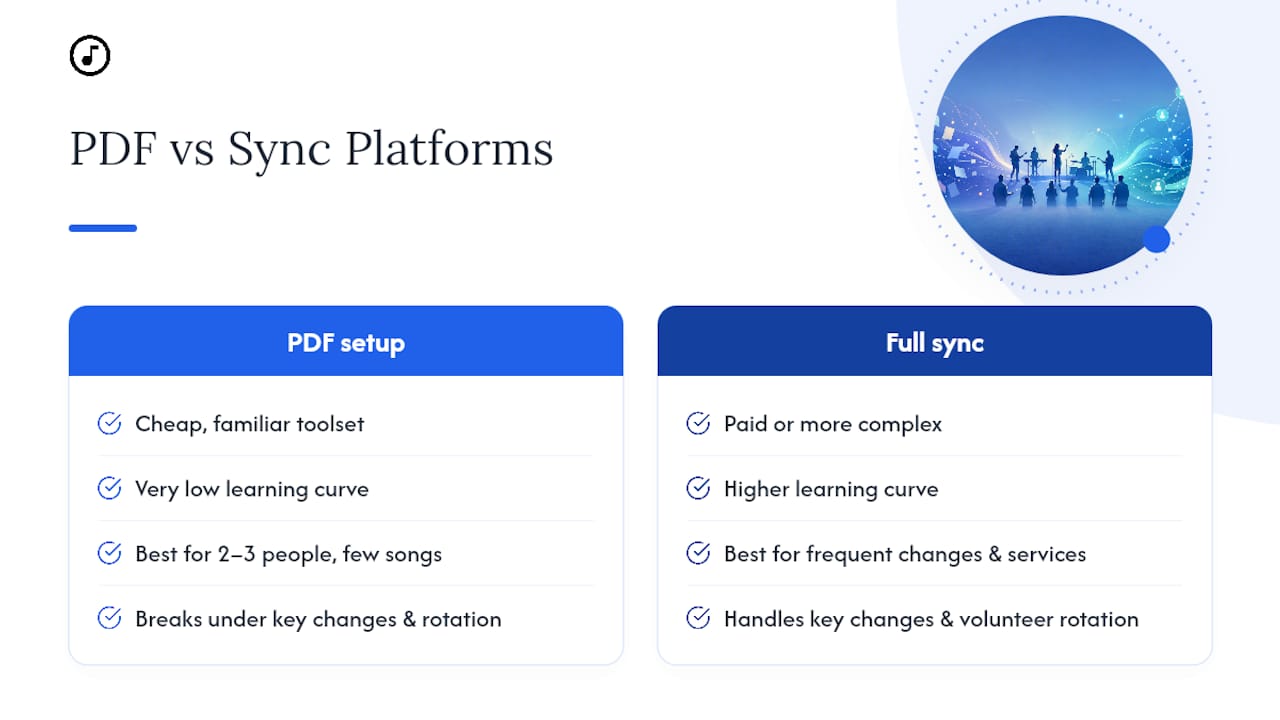
A PDF and shared cloud folder works fine for a two- or three-person team playing the same handful of songs each month. It's cheap, familiar, and nobody has to learn new software.
Once you're managing frequent key changes, rotating volunteers, or multiple weekend services, that manual system starts breaking down fast. The fix isn't more discipline. It's picking one method, writing a one-page team guide, and running a single trial service before committing long-term.
— Editorial team
Try Song7 for Your Next Rehearsal and Sunday Service
Some platforms give teams one place to build, sync, and run setlists instead of stitching together PDFs, group texts, and cloud folders that drift out of sync. Key features like real-time sync, role permissions, transposition, and presentation modes map directly to workflow steps so volunteers can learn a single system.
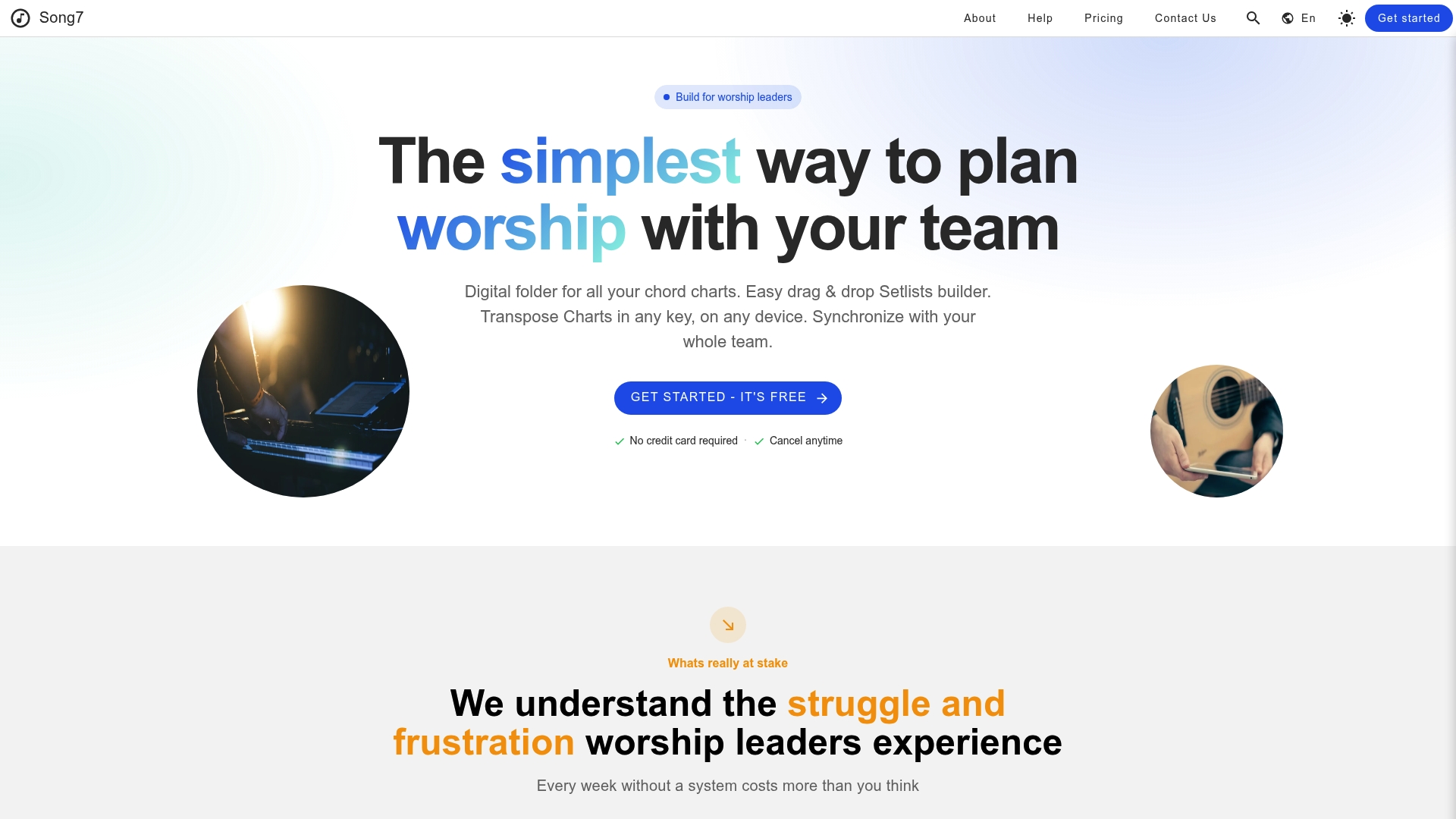
Getting started takes four steps: sign up, invite your team, build your first setlist, and publish it. That's it. No retraining volunteers on a complicated system, no separate app for chord charts and another for onstage display. If you're tired of tracking down who has the latest version of Sunday's setlist, start with Song7 and run your next rehearsal through it before you commit to anything long-term.
Sources
FAQ
How Does Team Setlist Sharing Actually Work?
A leader builds or updates a setlist inside an app, then publishes it, which pushes the current version to every invited team member's device in real time. Roles control who can edit versus who can only view.
How Can I Share a Setlist in forScore?
Use forScore's export or share menu to generate a shareable file from your setlist, distinct from a folder, then send it by email, AirDrop, or a cloud link. Name the file with the date and service type so recipients know exactly what they're importing.
What's the Difference Between a Folder and a Setlist in forScore?
A folder is a static grouping of pieces you might use for general organization, while a setlist is an ordered, service-specific sequence built for a particular event. Setlists are what you share for a given rehearsal or service; folders are more of a personal library structure.
What's the Best Way to Share a Setlist if My Team Has No Internet?
Export a timestamped PDF ahead of time and distribute it by email, text, or AirDrop so members have offline access. Platforms like Song7 also let you build and cache setlists in advance, reducing your dependence on venue Wi-Fi.
How Do I Keep Everyone on the Latest Version of a Setlist?
Lock the master setlist 48 hours before service, publish edits only through the leader role, and confirm sync across at least two devices before doors open. Timestamped filenames and a short change log prevent confusion if an older version resurfaces.