
To project Song7 lyrics, connect your device to the projector, set your operating system display to Extended (not Mirrored), open Song7's presentation mode, and move the presentation window to the projector display. Confirm the projector is on and set to the right input first. This whole process should take under two minutes once you've done it a couple times.
- Plug in your HDMI or USB-C cable and power on the projector
- Set your display mode to Extended, not Mirror
- Open your setlist in Song7, hit presentation mode, and drag it to the projector screen
- Walk to the back row and check that lyrics are legible
Success looks like this: the congregation sees only lyrics on the big screen, while your laptop or tablet still shows your controls, notes, and the rest of your setlist. If nothing shows up, check power first, then the input source, then the cable. Nine times out of ten, it's one of those three.
TL;DR:
- Using Extended display mode ensures the operator has control while only lyrics are visible on the projector, reducing accidental edits.
- Pre-service checks of cables, input sources, projector lamp, and display settings can prevent most common setup failures during service.
- Designing lyric slides with large, white, sans-serif text on a dark background, limited lines, and proper spacing enhances readability from the back row.
- Advancing slides on the last sung word and rehearsing timing cues with the worship leader prevent awkward lags and improve the flow of worship.
- Troubleshooting projector issues should start with power and input verification before checking cables and intermediary hardware for faster resolution.
Table of Contents
- Church Projector Setup Prerequisites: What to Check First
- Step-by-Step: Connecting Song7 to Your Projector
- Lyric Slide Design Rules That Actually Work in a Sanctuary
- How Do You Keep Slides in Time With the Worship Team?
- Troubleshooting Church Projector Setup Problems Fast
- Song7 Features That Make Live Projection Easier
- Acoustic Considerations When Projector Audio Meets Your Sound System
- Lighting Strategies That Keep Lyrics Visible
- Where to Place and Mount the Projector
- Choosing a Projector for Your Room Size
- Cable Management Habits That Prevent Problems
- What Actually Matters Once the Projector Is On
- Try Song7's Presentation Mode for Your Next Service
- Key Takeaways
- Sources
- FAQ
Church Projector Setup Prerequisites: What to Check First
A rushed setup on Sunday morning is where most projector headaches start. Confirm these before the team arrives:
- Device and adapters. Know whether your laptop or tablet needs HDMI, USB-C, or DisplayPort, and test the actual adapter you'll use that day, not just one that looks similar in the drawer.
- Projector power and input. Turn it on early enough to catch a dead bulb, and check the input selector matches your cable port.
- Song7 account and setlist. Make sure the operator has presentation permissions and the setlist is already built and synced, not still being edited from a phone in the parking lot.
- Display mode setting. On Windows, this lives in Display settings; on macOS, it's under Displays → Arrangement. Either way, set the projector to Extended rather than Mirror so you keep control of your device while the congregation only sees lyrics.
Running through this list during the Saturday tech run, not five minutes before doors open, saves you from the classic scramble.
Step-by-Step: Connecting Song7 to Your Projector
Once your hardware checklist is done, the actual setup takes a handful of clean steps. Do them in this order every time and it becomes muscle memory fast.
- Connect the cable to your device and the projector, then select the matching input on the projector remote or panel.
- Confirm projector power and lamp status. A blinking or red lamp indicator usually means it needs a minute to warm up, or it's telling you something is wrong before you even open a laptop.
- Detect the external display on your device and set it to Extended, not Mirrored. This keeps your operator screen private while the projector shows only what you send it.
- Match the resolution to whatever the projector handles best. Using extended desktop mode also avoids forcing the projector to match your laptop's native resolution, which matters a lot on laptops with unusual screen sizes.
- Open Song7, select your setlist, and enter presentation mode.
- Drag the presentation window onto the external display, or choose Presenter View if you're running it from a laptop with a second window open on your own screen.
- Test everything. Advance a few slides, hide a verse, try your hotkeys or the Song7 remote, and confirm slide transitions look clean.
- Walk to the back row. Font size that looks fine six feet from your laptop can be unreadable from the last pew.
Pro Tip: *Assign one volunteer, every week, to run a two-minute pre-service check: cable detected, display extended, one full-screen lyric slide tested from the sound booth.
This is also the moment to double-check that your Extended display selection didn't quietly revert to Mirror after a software update. It happens more than you'd think, especially on shared laptops.
Lyric Slide Design Rules That Actually Work in a Sanctuary
Good projection design isn't about making slides pretty. It's about removing every possible distraction between the congregation and the words they're supposed to be singing.
- Use a sans-serif font like Arial, Calibri, or CMG Sans, and keep the size consistent from song to song.
- White or very light text on a dark or black background is the standard for a reason. Light backgrounds routinely hurt legibility on projected surfaces, especially with any ambient light in the room.
- Limit each slide to one or two lines, four lines maximum, and use 1.2 to 1.3 line spacing so words don't crowd together.
- Break lines where the lyric naturally pauses, not at a comma or period. Sentence case reads more naturally than ALL CAPS, and skip italics or underlines entirely.
- Match background motion and color to the song's tempo, and stick to one or two backgrounds per song so the visuals don't compete with the music.
Font size isn't a fixed number. A practical range runs 32 to 48 points depending on the font and screen size, but the only real test is standing in the farthest seat and reading it yourself. Poor slide production pulls focus away from worship, and the operator's real job is removing that friction so people can just sing.
How Do You Keep Slides in Time With the Worship Team?
Slide timing is where technical setup meets actual ministry. An operator who advances a beat too late creates an awkward silence; too early, and the congregation reads ahead of the singer.
- Advance while the last word is still being sung, not after it ends. This keeps momentum instead of creating a visible lag between voice and screen.
- Agree on simple cues with your worship leader during rehearsal: a hand signal, a subtle nod, or a quick glance at the operator during a count-in works better than guessing.
- Use hotkeys, a wireless presenter, or Song7's remote functionality so you're not hunting for a trackpad in a dark booth.
- Prepare fallback slides for repeated choruses, extended bridges, or the moment the worship leader decides to do one more lap around the "Spirit come" line nobody rehearsed.
Pro Tip: Rehearse the actual slide advances, not just the song. Teams that practice timing the transition to land on the last sung word consistently avoid the late-slide stumble that makes a worship set feel unpolished.
Spontaneous moments are part of worship. Your job isn't to eliminate them but to have a plan flexible enough to follow the room without fumbling the remote.
Troubleshooting Church Projector Setup Problems Fast
Most projector failures trace back to one of a handful of causes, and working through them in order saves you from randomly unplugging things while a service is waiting.
- Check the basics first. Confirm the projector is powered on, set to the correct input, and the lamp indicator looks normal.
- Verify physical connections. Reseat the cable, try a different HDMI port or adapter, and if you have a backup laptop, swap it in to see if the problem follows the device.
- Isolate the source. Testing another device or cable tells you fast whether the fault is the laptop, the cable, or the projector itself.
- Confirm Extended mode is still active. Software updates sometimes reset display settings back to Mirror without warning.
- Check intermediary hardware. Switchers, splitters, or decimators need power too, and a mis-routed input layer can make a perfectly working projector show nothing at all. If the screen stays blank despite power, check the switcher's output assignment before assuming the projector is broken.
| Symptom | Likely Cause | Quick Fix |
|---|---|---|
| No signal at all | Wrong input or loose cable | Reselect input, reseat cable, swap device to isolate |
| Image is dim or washed out | Low lamp life or too much ambient light | Check lamp hours, clean the lens, dim nearby lighting |
| Wrong resolution or stretched text | Display not set to a matched resolution | Adjust resolution in OS display settings, avoid heavy keystone correction |
| Projector on but blank screen | Switcher or splitter routing issue | Check intermediary device power and output layer |
If the picture looks dim rather than absent, resist the urge to crank up keystone or warp correction. Both eat into brightness. Clean the lens, cut ambient light where you can, and check lamp hours; modern projectors often flag bulb life proactively before they fail outright.
Song7 Features That Make Live Projection Easier
Song7's presentation mode is built around exactly this workflow. Open a setlist, hit presentation mode, and the display window is ready to drag onto your extended projector screen with lyrics formatted and ready, no manual resizing required.
- Presenter view keeps your controls, notes, and upcoming songs visible on your own screen while only the lyric slide shows externally.
- Real-time sync means if the worship leader swaps a song order five minutes before doors open, the operator's screen updates instantly instead of running an outdated setlist.
- Built-in prep tools let you transpose on the fly, hide specific verses, and break lyric lines cleanly before the slide ever hits the projector.
- Simple role permissions mean a volunteer operator gets exactly the access they need, presentation control, without the risk of accidentally editing a song mid-service.
For a volunteer-run media team, that combination removes most of the guesswork that used to require a dedicated tech-savvy staffer.
Acoustic Considerations When Projector Audio Meets Your Sound System
Most churches route audio through their main sound system rather than a projector's built-in speakers, and for good reason. A projector speaker is designed for a small classroom, not a sanctuary with pews, hard floors, and a live band.
If a video element in your service needs sound, whether it's a baptism clip or a missions video, route that audio signal directly into your church's mixing board rather than relying on the projector's output. This gives your sound operator control over volume balance in real time, and it avoids the awkward doubled-audio effect you get when both the projector speaker and the main system play at slightly different volumes or delays.
Keep in mind that projector fan noise, especially on older or lower-end units, can become a background hum that competes with quiet moments in a service. If your projector sits close to the front rows or near a stage microphone, that fan noise can bleed into recordings or live streams. Positioning the projector farther from open mics, or choosing a model with a quieter fan rating, solves most of this without needing acoustic treatment.
For churches running lyrics only, with no video or audio playback through the projector, this is a smaller concern. But if your setup grows to include announcement videos or recorded testimonies, loop in whoever runs your sound board early. A projector and a sound system that were set up independently, months apart, rarely integrate cleanly without a conversation first.
Lighting Strategies That Keep Lyrics Visible
Ambient light is often the real enemy of a legible projector screen, more than the projector's brightness rating itself. A $2,000 projector under harsh stage lighting can look worse than a modest one in a properly dimmed room.
Stage lighting aimed at the band or pulpit should avoid spilling directly onto the projection screen. Even a small amount of wash light hitting a screen washes out contrast and makes white text on dark backgrounds harder to read, which undercuts the exact design choice covered earlier in this guide.
Natural light is the trickier variable. Sanctuaries with large windows facing east or west often deal with dramatically different lighting conditions between a 9 a.m. and an 11 a.m. service. Blackout shades, tinted film, or simple curtains solve this more reliably than trying to compensate by cranking projector brightness, which shortens lamp life and rarely fixes true daylight glare.
House lighting during sung worship typically gets dimmed anyway for atmosphere, which happens to be the same condition that makes projected lyrics most legible. If your church runs house lights at full brightness during singing for safety or accessibility reasons, consider raising screen brightness or repositioning the screen away from direct light sources rather than fighting the room's fixed lighting plan.
Where to Place and Mount the Projector
Placement decisions made once, during a physical mount, are far harder to fix than a software setting. A projector positioned too far off-center creates visible keystone distortion that no software correction fully resolves without softening the image.
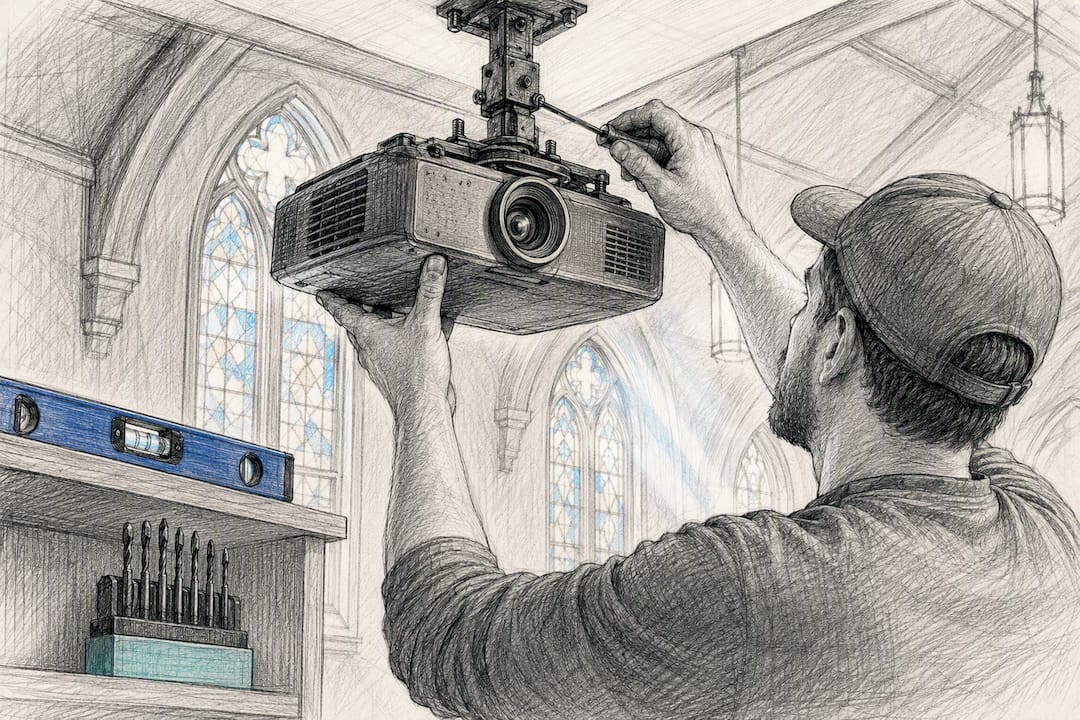
Ceiling mounts near the center of the room, aimed straight at the screen, produce the cleanest image with the least correction needed. Off-axis mounting, common in older buildings where structural beams or existing electrical runs dictate placement, usually requires digital keystone correction, and every bit of that correction costs you brightness and sharpness.
Throw distance matters more than most teams realize until they're standing in the room with a tape measure. A projector mounted too close produces a small image; too far, and brightness drops noticeably by the time light reaches the screen. Check your specific projector's throw ratio against the room's actual measurements before committing to a mounting bracket location.
Height matters too. A projector mounted low enough that a tall worship leader or a raised hand during prayer casts a shadow across the screen creates a distraction nobody planned for. Mounting above head height, angled slightly down if needed, avoids this without complex workarounds.
Choosing a Projector for Your Room Size
Room size and ambient light conditions, not marketing specs, should drive your projector choice. A small chapel seating 80 people has completely different needs than a sanctuary seating 600 under bright stage lighting.
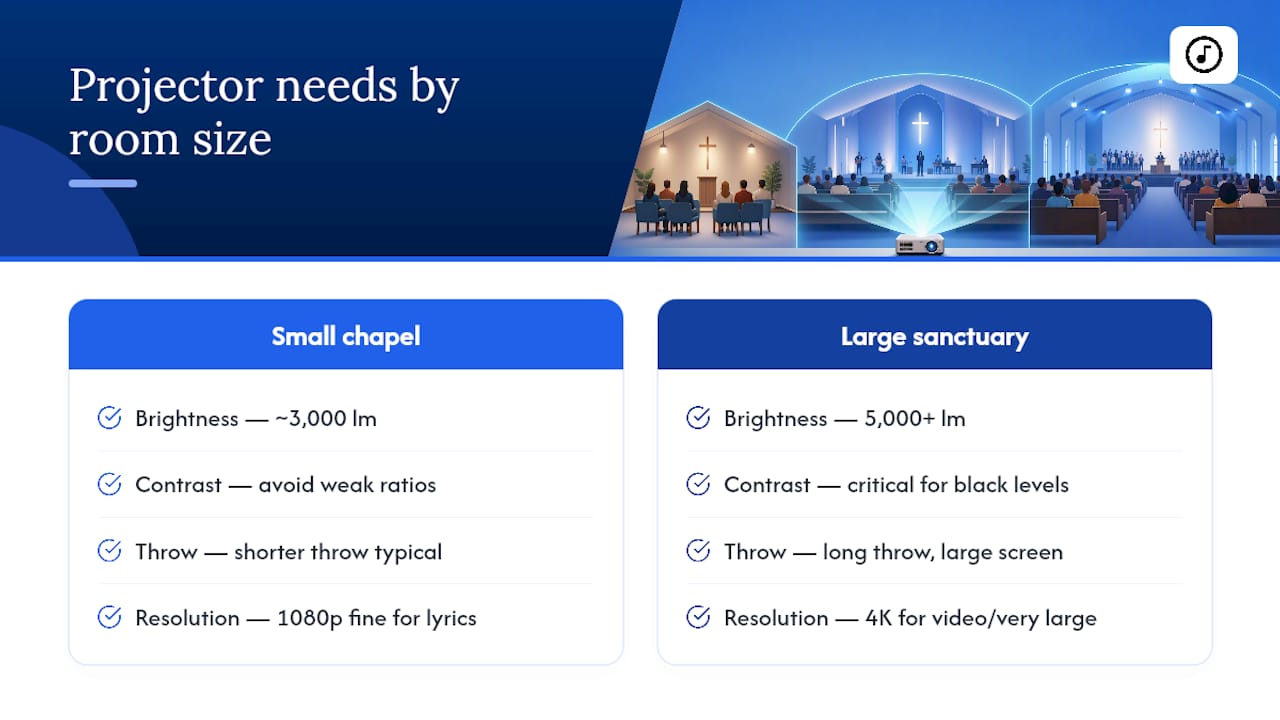
Brightness, measured in lumens, is the number that matters most once you have more than minimal ambient light. Smaller rooms with good light control can run comfortably around 3,000 lumens. Larger sanctuaries with stage lighting or daylight exposure often need 5,000 lumens or more to keep lyrics legible without dimming the room to near darkness.
Resolution matters less than most people assume for lyric display specifically, since text doesn't demand the fine detail that video content does. A standard 1080p projector handles worship lyrics fine in most churches; 4K becomes relevant mainly for churches running detailed video content or very large screens where pixel density becomes visible up close.
Contrast ratio affects how deep your black backgrounds actually look, which matters given the white-on-black design standard covered earlier. A projector with a weak contrast ratio renders "black" backgrounds as a washed-out gray under any ambient light, undercutting legibility even with a well-designed slide.
Cable Management Habits That Prevent Problems
A tangle of cables running across a stage floor isn't just an aesthetic problem. It's a tripping hazard for a worship leader walking with a handheld mic, and a single yanked cable mid-service is exactly the kind of failure this whole guide is trying to help you avoid.
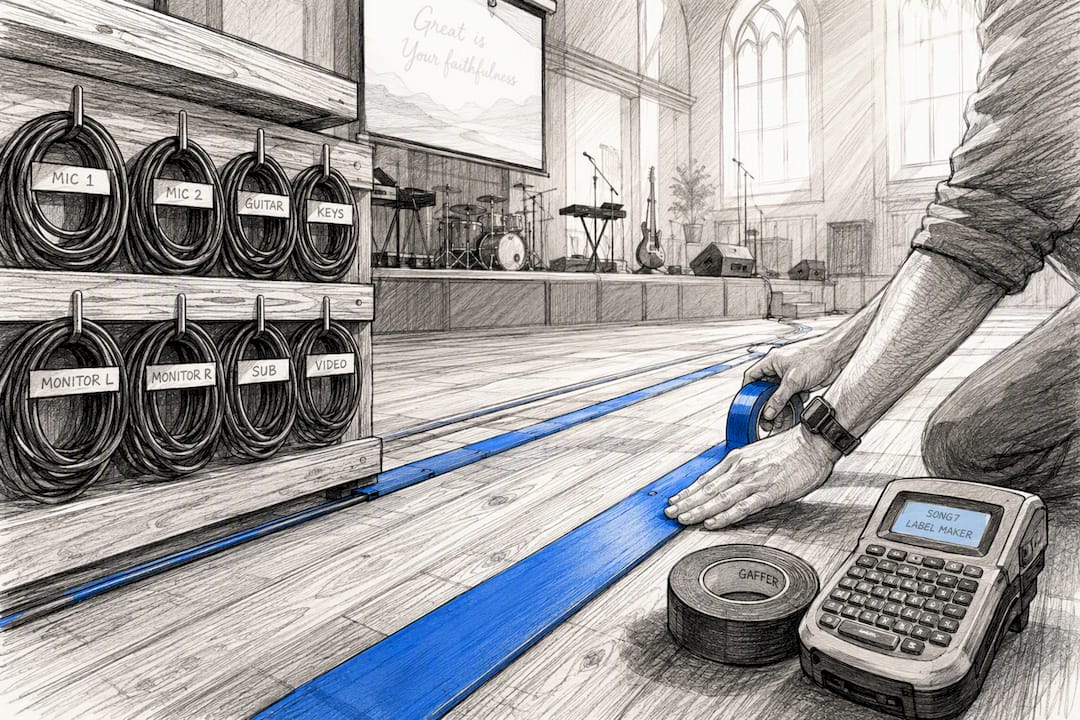
Cable raceways or floor cord covers, run along walls or under risers rather than across open walking paths, solve the safety issue directly. Where cables must cross a walkway, gaffer tape holds better than duct tape and pulls up cleanly without leaving residue on sanctuary flooring.
Labeling both ends of every cable, projector input, source device, and any switcher ports, saves enormous time during a fast Sunday-morning fix. A volunteer troubleshooting a "no signal" issue five minutes before service starts shouldn't have to trace an unlabeled cable behind a stage riser to find out which end goes where.
For permanent installations, running cable through conduit or behind walls keeps the sanctuary looking clean and protects cables from wear. For churches using a portable setup week to week, a simple labeled cable bag with everything coiled and ready, rather than tossed loose into a closet, cuts setup time dramatically and reduces the odds of a missing adapter on the day it matters most.
What Actually Matters Once the Projector Is On
Most guides to church projection treat every step as equally important, and that's where a lot of volunteer teams go wrong. The truth, based on how these failures actually play out week to week, is that display mode and slide timing cause far more Sunday-morning frustration than projector brightness or mount height ever will.
Conventional advice tends to obsess over spec sheets: lumens, contrast ratios, throw distance. Those matter for a building project, but for the operator sitting in the booth, the failure points are almost always software, not hardware. A display quietly reverting to Mirror mode after an update. A slide advanced a half-second too late. A cable nobody labeled.
If you take one thing from this guide, prioritize the pre-service check over the equipment upgrade. A $6,000 projector with a volunteer who doesn't know how to set Extended mode will fail more often than a modest projector run by someone who's rehearsed the timing and tested the cable. Reliability in worship tech comes from repeatable habits, not better gear. Fix the process before you fix the projector.
— Editorial team
Try Song7's Presentation Mode for Your Next Service
Song7 saves your operator from the two things that cause the most Sunday-morning stress: last-minute setlist confusion and clunky lyric displays that don't sync with what the band is actually playing.
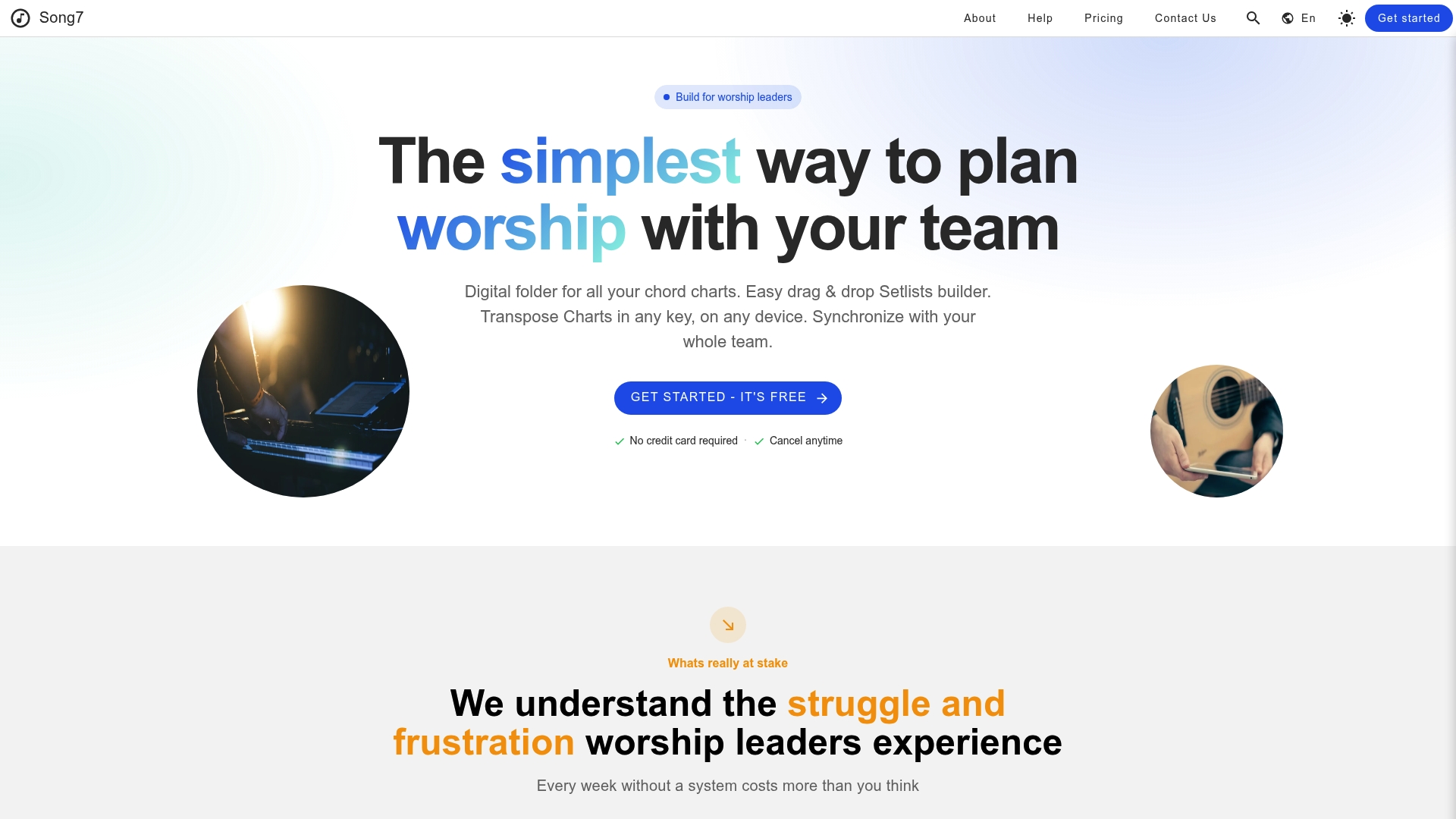
Instead of juggling separate apps for chord charts, setlists, and projection software, Song7 keeps everything in one presentation mode built specifically for volunteer teams. When your worship leader changes a song order in rehearsal, your operator's screen updates instantly, no re-uploading, no scrambling for a printed backup. If you're preparing scripture-based lyric slides, resources like Bible verses about praise pair naturally with the presentation formatting Song7 already supports.
You can start a free trial on Song7 today and run your next rehearsal with presentation mode live, no long setup required to see whether it fits your team's workflow.
Key Takeaways
Reliable church projector setup depends on Extended display mode, a rehearsed slide-timing routine, and a pre-service checklist run by a designated volunteer every week.
| Point | Details |
|---|---|
| Extended mode is non-negotiable | Set your OS display to Extended, not Mirror, so your controls stay private while lyrics show externally. |
| Design for the back row | Use sans-serif fonts, white text on dark backgrounds, and test size from the farthest seat. |
| Timing beats brightness | Advance slides on the last sung word; most Sunday failures are timing or settings, not hardware. |
| Troubleshoot in order | Check power and input first, then cables, then Extended mode, then intermediary switchers. |
| Song7 keeps teams synced | Presentation mode and real-time sync let operators follow last-minute setlist changes without confusion. |
Sources
- Managing projection settings: extend vs mirror
- 10 essential rules for projecting lyrics
- Audio Visual Troubleshooting Tips for Houses of Worship
- How to troubleshoot 3 common projection problems
- Improving Your Projected Song Lyrics - Part 1
FAQ
What Is the Fastest Way to Fix a Church Projector Setup?
Check projector power and input first, confirm the cable is fully seated, and verify your device is set to Extended rather than Mirror display mode. Most no-signal issues resolve at one of those three points.
Should I Use Mirror or Extended Display Mode?
Use Extended mode. It lets you control slides privately on your device while the congregation sees only the lyric slide on the projector screen.
How Big Should Lyric Text Be on a Church Projector?
There's no single fixed size, but a practical starting range is 32 to 48 points depending on font and screen size. Always confirm legibility from the farthest seat in the room.
Can Song7 Run Presentation Mode on an External Projector?
Yes. Song7's presentation mode is built to move directly to an external display once your device is set to Extended, giving operators presenter view controls while only lyrics appear on the projector.
Why Does My Projector Show a Blank Screen Even Though It's On?
This is usually an input selection or routing issue rather than a power failure. Check the projector's input source, and if you're using a switcher or splitter, confirm the output is routed to the correct layer.